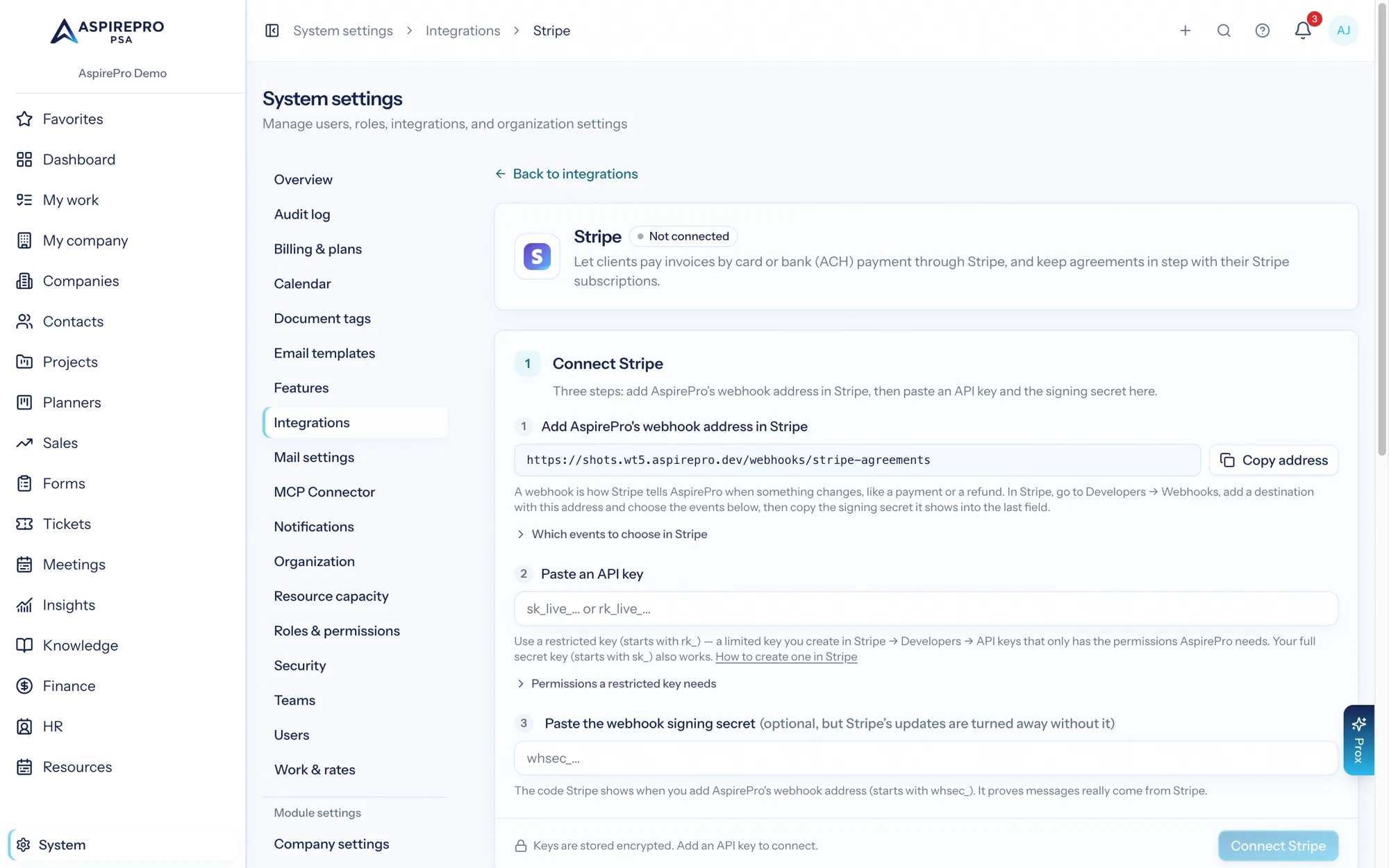
Stripe is an organization connection at System → Integrations → Stripe: an admin pastes an API key and a webhook signing secret once, and three things light up — agreements that follow their Stripe subscriptions, clients linked to Stripe customers, and invoices that go out with a Stripe payment page.
Stripe works at full depth with or without QuickBooks. If Stripe is your only billing system, AspirePro is your record of what was billed and paid: invoices you send through Stripe appear on Finance → Invoices, payments record automatically, and every report (statements, collection rate, profitability) sees the money.
Two connections, two jobs#
Stripe attaches to AspirePro in two independent places, and it's worth being precise about which does what:
Connection | Where | What it covers |
|---|---|---|
Agreement ↔ subscription link | The agreement page | Contracted value only — the monthly amount and the subscription's status. No invoices, no payments. |
Company ↔ customer link | Company → Finance → Integrations | Cash — sending invoices through Stripe, bringing in invoices made in Stripe, recording payments, fees, and refunds. |
You can use either without the other. A client can have a linked subscription without being linked to a Stripe customer (their contracted revenue stays honest, but their Stripe invoices don't appear here), or be linked to a customer with no linked subscription (invoices and payments come through, but agreement amounts are yours to keep up to date by hand).
Connect — the exact steps#
You'll create two things in Stripe (a webhook and an API key) and paste two values into AspirePro. Ten minutes, once.
A webhook is how Stripe tells AspirePro when something changes — a payment, a refund, a subscription change — so it shows here straight away. You set it up by giving Stripe an address to send those updates to.
Step 1 — create the webhook#
- Open System → Integrations → Stripe in AspirePro and copy the Webhook address (add this in Stripe first) with the Copy address button (it looks like
https://your-organization.aspirepro.io/webhooks/stripe-agreements). - In the Stripe dashboard, open Developers (bottom-left) → Webhooks → Create an event destination.
- Select events (first screen): keep Your account selected, leave the API version as suggested, and select the events AspirePro uses: Selecting extra events does no harm — AspirePro ignores any it doesn't use. The same list is on the Stripe page under Which events to choose in Stripe.
- everything under Customer starting with
customer.subscription.(updated, deleted, and friends), - everything under Invoice (
invoice.paid,invoice.payment_failed,invoice.voided, and the rest — selecting the whole group is fine), refund.created,refund.updatedandrefund.failedunder Refund (if your destination only hasrefund.created, add the other two — without them a pending or failed refund only updates at the nightly check),checkout.session.completedandcheckout.session.async_payment_succeededunder Checkout — for Pay now payments (without them a payment still shows, but only when the client comes back to the invoice page or at the next 15-minute check).
- everything under Customer starting with
- Choose destination type (second screen): pick Webhook endpoint.
- Configure destination (third screen): give it a name you'll recognize (e.g. AspirePro), paste the webhook address you copied in step 1 into Stripe's Endpoint URL field, and click Create destination.
- On the new destination's page, reveal and copy the signing secret (starts with
whsec_…). That's value #1 — it proves updates really come from Stripe.
Step 2 — create the API key#
- In Stripe: Developers → API keys → Create restricted key.
- When asked "How will you be using this key?", choose Providing this key to a third-party application.
- Grant these permissions:
- Write: Customers, Subscriptions, Invoices, Credit notes, Products, Prices, and Checkout Sessions (for Pay now)
- Read: Charges, Refunds, Payment Intents, Balance transactions, and Payment method configurations (for the ways clients can pay on Stripe's payment page — see Pay now)
- Create the key and copy it (starts with
rk_…). That's value #2.
Your account's full secret key (sk_…) also works — AspirePro accepts either — but the restricted key is the safer choice: it can do exactly what AspirePro needs and nothing else. Don't worry if the restricted key can't read your account name; AspirePro notices and names the connection as best it can.
Step 3 — connect#
Back on System → Integrations → Stripe, under Connect Stripe, paste the API key and the Webhook signing secret, and press Connect Stripe. The signing secret is optional, but without it AspirePro can't check that updates really come from Stripe and turns them away. Once connected, the page shows your Stripe account, its Account ID, whether the Webhook signing secret is saved, how many Linked agreements there are, and Live or Test mode (no real money moves with a test key). The Stripe webhook card keeps the address and event list to hand; to add a signing secret later, disconnect Stripe and connect again with your API key and the secret — your links are kept.
If Stripe refuses the key#
If the key is revoked, rolled or expires in Stripe, the next call AspirePro makes with it is refused. AspirePro notices that — and only that: an outage, a timeout, a rate limit, a declined card or a missing permission on a restricted key never counts — and marks the connection as needing reconnecting:
- System → Integrations → Stripe shows Needs reconnecting with the reason, and the form becomes Replace your Stripe key, with a Replace key and reconnect button and Disconnect Stripe beside it.
- A banner across the top of every page tells the people who can change Finance settings what's paused: syncing with Stripe waits, and your Finance settings that use Stripe (Stripe emailing your invoices, its reminders, Pay now) fall back to AspirePro meanwhile, each card saying how. They get one notification too.
Replacing the key keeps everything. Paste a new key for the same Stripe account (a key for a different account is refused while records are linked to this one — see the Linked Stripe account card and Finance sync). Every customer, invoice and subscription link carries on where it left off, your Finance settings apply again by themselves, and the banner goes. Leave the signing secret blank to keep the one already saved.
Disconnect Stripe… (in the ⋯ menu) keeps agreements linked to their Stripe subscriptions, but they stop updating until you reconnect. Finance settings that use Stripe, like who emails your invoices, go back to AspirePro.
Agreements ↔ subscriptions#
Link a Stripe subscription to an agreement straight from the agreement page: the picker lists your active subscriptions with each customer's name, email, and monthly value — search, click, linked. (Pasting a sub_… id still works for edge cases.) From then on:
- From Stripe: amount changes and cancellations made in Stripe update the agreement automatically (through the webhook; every change is on the audit trail).
- To Stripe: edit the agreement's amount and a banner appears showing both numbers. Sync to Stripe updates the subscription to your amount with your choice of proration — bill the difference now, add it to the next invoice, or no proration — with a preview of what the next charge will be, fetched from Stripe before you confirm. If the proration charge is declined, nothing changes; nothing half-applies.
- Cancelling: cancel at period end (undoable until the period turns — the agreement offers Undo scheduled cancellation) or immediately, with an optional prorated credit and final invoice. Either way the agreement flips to Cancelled when Stripe confirms.
An amount you changed here is never overwritten by an update from Stripe — the two numbers wait, side by side, until you send yours to Stripe or take Stripe's.
What the link does for reports: the agreement's amount drives MRR, ARR, TCV, and — when profitability uses the contracted (blended) revenue basis — client and agreement margins. A cancelled subscription flips the agreement to Cancelled, which removes it from MRR and expected revenue entirely. So the link's real job is keeping recurring-revenue reporting honest without anyone re-keying numbers.
What the link does NOT do: it never creates invoices in AspirePro and never records payments — no money moves through it at all. Invoices and payments come from linking the client to a Stripe customer (next section). If you want both — honest contracted value and the cash coming in — set up both; they don't conflict. The Stripe page's Linked agreements card lists every agreement linked to a subscription, with the subscription's status (for example Active, Payment overdue or Cancels at period end). To link one, open the agreement and use its Stripe card.
Linking clients to Stripe customers#
On Company → Finance → Integrations, link each client to a Stripe customer — search by name, look up exactly by email, or Create this company in Stripe. One Stripe customer is linked to one company. The link is independent of QuickBooks: a company can have both.
Sending invoices through Stripe#
With the company linked, any invoice can be sent with Send via Stripe:
- The invoice is created in Stripe with your AspirePro invoice number — your numbering stays the one that counts — and becomes a Stripe payment page (card payment, receipt, PDF).
- Choose who emails it: Stripe emails the client (with Stripe's branding, receipts, and reminders) or Just create the payment page and send the link yourself.
- When the client pays, the payment is recorded on the invoice automatically — status, paid date, statements, and reports all update. If a payment attempt fails, finance managers get one alert (not one per retry).
- Every night AspirePro checks every open Stripe invoice again, so a missed update from Stripe can never leave paid money unrecorded.
An invoice goes to Stripe once: after it's there, edits go through void and reissue. Voiding in AspirePro also voids the Stripe invoice, so an old emailed payment link can never charge a dead invoice — and a void made in Stripe is flagged on the invoice here.
Invoices that start in Stripe#
Invoices Stripe makes for subscriptions — and ones you create in the Stripe dashboard — are brought in automatically for linked companies (nightly, or Sync invoices on the company's Stripe card). They appear on Finance → Invoices as Stripe-sourced invoices, payments and all, so invoiced-basis reporting sees the revenue whichever side authored the document. They aren't put on an agreement automatically; choose one in the invoice's Agreement field if it bills one (see Which agreement an invoice is on).
Before anything is brought in, AspirePro checks it isn't a duplicate:
- An exact invoice-number match links the Stripe invoice to the one you already have — one invoice, never a second row.
- A look-alike (same company, same total, dates within a few days) goes to a review banner on Finance → Invoices: Same invoice — link it or Import as new. Nothing is brought in twice or merged without you knowing.
Fees and refunds#
- The processor fee on each Stripe payment is captured on the payment row and counted in profitability as a direct client cost — exactly once.
- Refunds (full or partial) follow Stripe: a refund that's still pending shows on the invoice as pending and doesn't change what the client owes; once it succeeds it becomes a negative payment and the invoice's balance and status correct themselves (a fully-refunded invoice returns to sent, never stuck at paid); a refund that fails or is cancelled is taken back out.
- A nightly check looks again at refunds still in progress and finds any refund Stripe didn't tell AspirePro about, so a missed update can't leave an invoice wrong.
Who emails your invoices#
With more than one of Stripe, QuickBooks and Xero connected, the Who emails your invoices setting appears on each of their pages — one shared setting, so changing it on the Stripe page changes it on the QuickBooks and Xero pages too. Choose Stripe (with a Stripe payment page) to have Send go through Stripe. The invoice page puts that way first; any invoice can still be sent another way.
Products and services#
The Products and services card adds your products and services to Stripe, so invoices it handles use the same items. Items only go from AspirePro to Stripe — AspirePro is the source of truth, and changes you make here update Stripe automatically. Add missing items to Stripe adds the ones not there yet.
When an invoice goes to Stripe, each line priced from an item that's in Stripe carries that item's Stripe product, so Stripe's reports show what each invoice was for. Lines that aren't from the catalog, credit lines, and lines whose item you've deactivated go as a plain description and amount — and if Stripe ever refuses a product (deleted on the Stripe side, say), the line goes without it rather than holding up the invoice. See Products and services.
The audit trail#
Every change in either direction lands in the audit log (System → Audit log), whether a person clicked it, Stripe sent it, or a nightly check found it:
- You acting: connect/disconnect, linking or unlinking a subscription, sending an amount to Stripe (with the proration choice), cancelling a subscription or undoing a cancellation, linking a client or creating a Stripe customer, sending an invoice via Stripe, deciding on a possible duplicate, changing who emails your invoices.
- Stripe acting (through the webhook): an amount updated on an agreement, a subscription cancelled, an invoice paid, an invoice voided after a failed payment, a refund recorded.
- The nightly checks: invoices brought in or linked by number, payments found by the nightly check, and — for the other systems — payments brought in from Xero or QuickBooks, including a Xero payment taken back off when a bookkeeper deletes one.
Entries name the Stripe IDs involved, so any number in AspirePro can be traced back to the exact subscription, invoice, or refund behind it.
Security notes#
- Use a restricted key (starts with
rk_) rather than your full secret key. - Keys are stored encrypted for each organization.
- AspirePro checks the signing secret on every update from Stripe, and turns away any that isn't signed or is too old.