Outbound turns a list — of contacts, or of companies — into a place to work. You pick a block of names, work through them by phone and email, record what actually happened on each touch, and the list tells you where you are — who has never been called, who has gone quiet, who booked a meeting, who is done.
Everything here is built on activities you were already logging. There is no separate campaign object to keep in sync, and no cadence engine deciding your day for you.
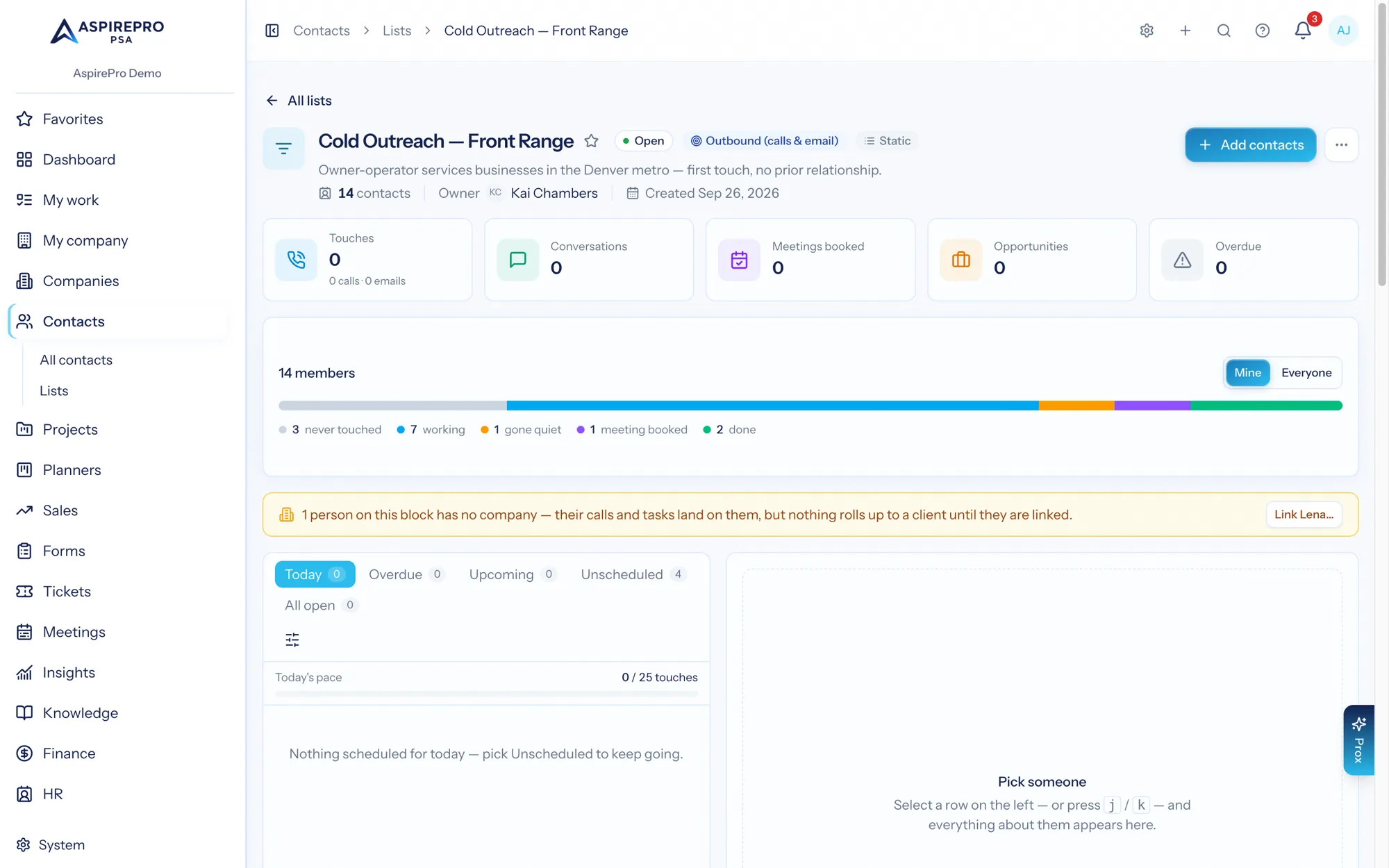
Turning a list into a block#
Give a list a purpose. Open Contacts → Lists, create a list (or open an existing one and press Settings), and choose:
- General — today's behaviour. A bucket of names, nothing changes.
- Outbound (calls & email) — the list becomes a working block with a cockpit.
An outbound block has a few settings worth setting once:
Setting | What it does |
|---|---|
Channels | Whether the block is worked by phone, by email, or both. At least one stays on. |
Calls / emails log as | Which activity type each channel records. Defaults to Call and Email. |
Next step due in (days) | How far ahead the follow-up date is pre-filled. |
No next step, no save | On by default. See the one rule below. |
Gone quiet after (days) | How many days of silence before a member is flagged as having gone quiet. |
Skip contacts tagged | A tag that removes people from the queue entirely — your do-not-contact tag belongs here. |
Lead statuses that mean done | Lead Statuses (HubSpot's field) that mean a person is finished — Unqualified, say. A member holding one leaves every queue without a touch being logged here. Contact lists only. |
Daily target | How many touches a day the block expects of a person. Drives the pace bar on the block's Today tab; 0 (the default) turns it off. |
Opportunities | The pipeline, source, and stage used when a call earns an opportunity. |
The block page#
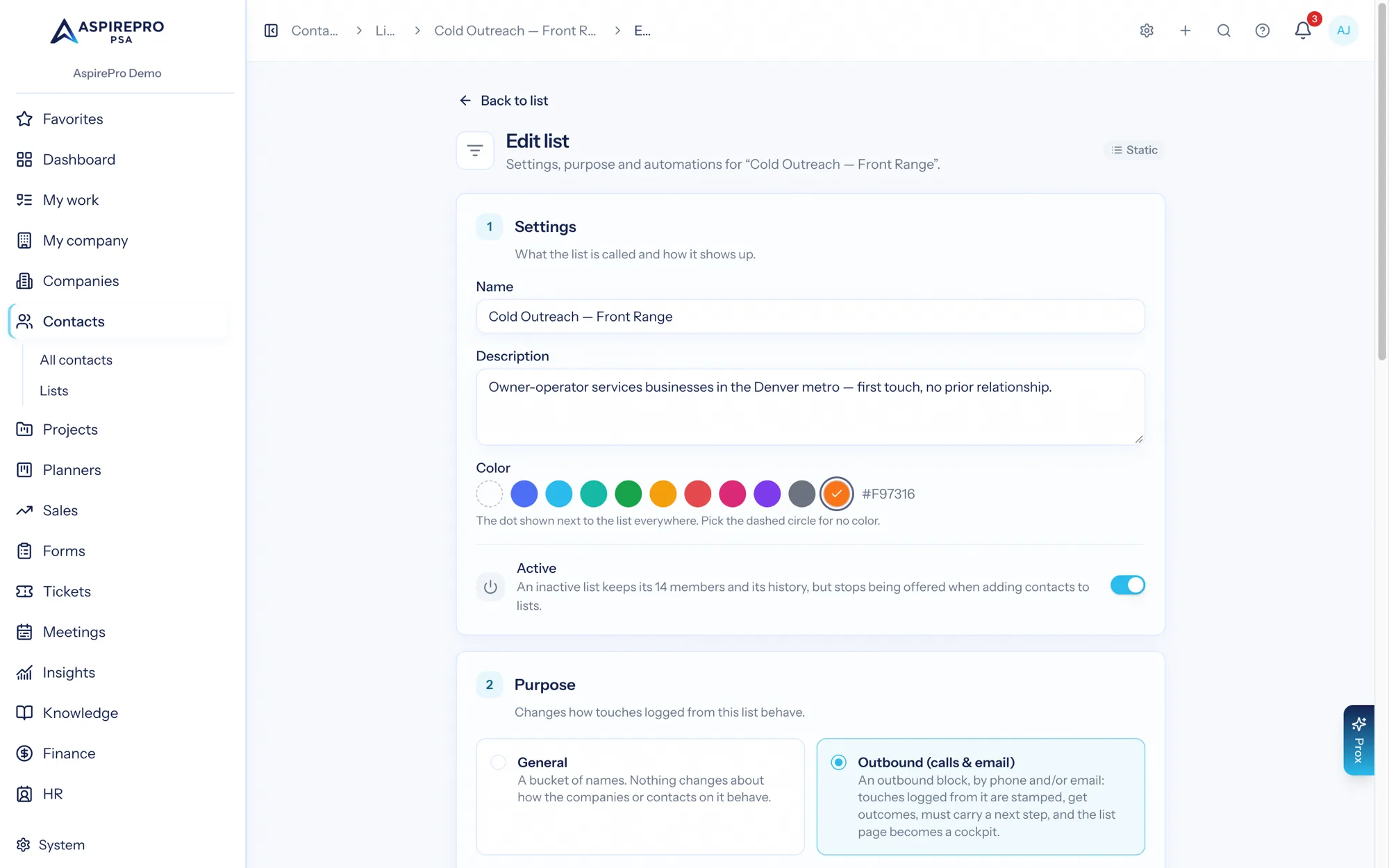
An outbound block is one screen built to be worked from, so a rep never has to bounce between the list, the record and their task list. Top to bottom: the cockpit — the block's numbers and where everyone stands; the queue with the person beside it; and everyone on the block — the members table, where the block is built.
The cockpit#
The numbers. Touches (split into calls and emails), conversations (connected calls plus replies), meetings booked, opportunities, and overdue follow-ups. The overdue tile only goes red when something actually is.
Where everyone stands. A bar with a legend, counting each member into one of five block states:
- Never touched — nobody has completed a call, email or meeting on them (from anyone, any block, the record, or HubSpot) and nothing is scheduled
- Working — a next step is scheduled, or they were reached within the gone-quiet window
- Gone quiet — last touch older than your threshold, nothing scheduled
- Meeting booked — a meeting outcome or a scheduled meeting
- Done — a terminal outcome, an opportunity created from this block, or a Lead Status the block treats as done
People carrying the block's skip tag are not a state of their own: they are dropped from every queue and counted beside the member total as skipped (tagged).
These are worked out from what was logged, not a status somebody has to remember to update — and they are a different thing from HubSpot's Lead Status, which a person sets. Log the call and the state follows.
Mine or everyone. One toggle, and it drives the whole page. Mine narrows the block's touches, pace, open work and opportunities to yours. Whether a person has been reached, and their last outcome, follows the person and reads the same for everyone; whether they read Working (a next step scheduled) or Done by opportunity follows whose open work and opportunities are in view.
The queue#
Five tabs, each with its count, each answering one question:
- Today — what is scheduled for today
- Overdue — what slipped
- Upcoming — what is scheduled for tomorrow onward
- Unscheduled — people with no next step: never touched first, then gone quiet — the ones to pull from when today's list is done
- All open — every open follow-up and task on the block's people, any date, HubSpot tasks included
Every person with open work is in exactly one of the first four, so the counts add up (a timed step that slipped earlier today shows in both Today and Overdue); an empty Today says how many are overdue. Each row carries the person, their company, the reason they are up ("Follow-up due today", "HubSpot task overdue", "Never touched"…), the number to dial with an icon that says what kind it is, their Lead Status, "Last call 3d ago · Last email 5d ago", and their last outcome. On All open each row is one item: its date when it is ahead, how late it is once it has slipped.
The filter. The slider icon beside the tabs narrows the current tab — by Lead Status, by block state, by HubSpot sequence (in a sequence now, not in one, or a particular sequence — only when HubSpot is connected), or (on All open) by type — and re-orders it: due soonest or latest, newest or oldest on the block, most recently or longest since reached. Each tab keeps its own.
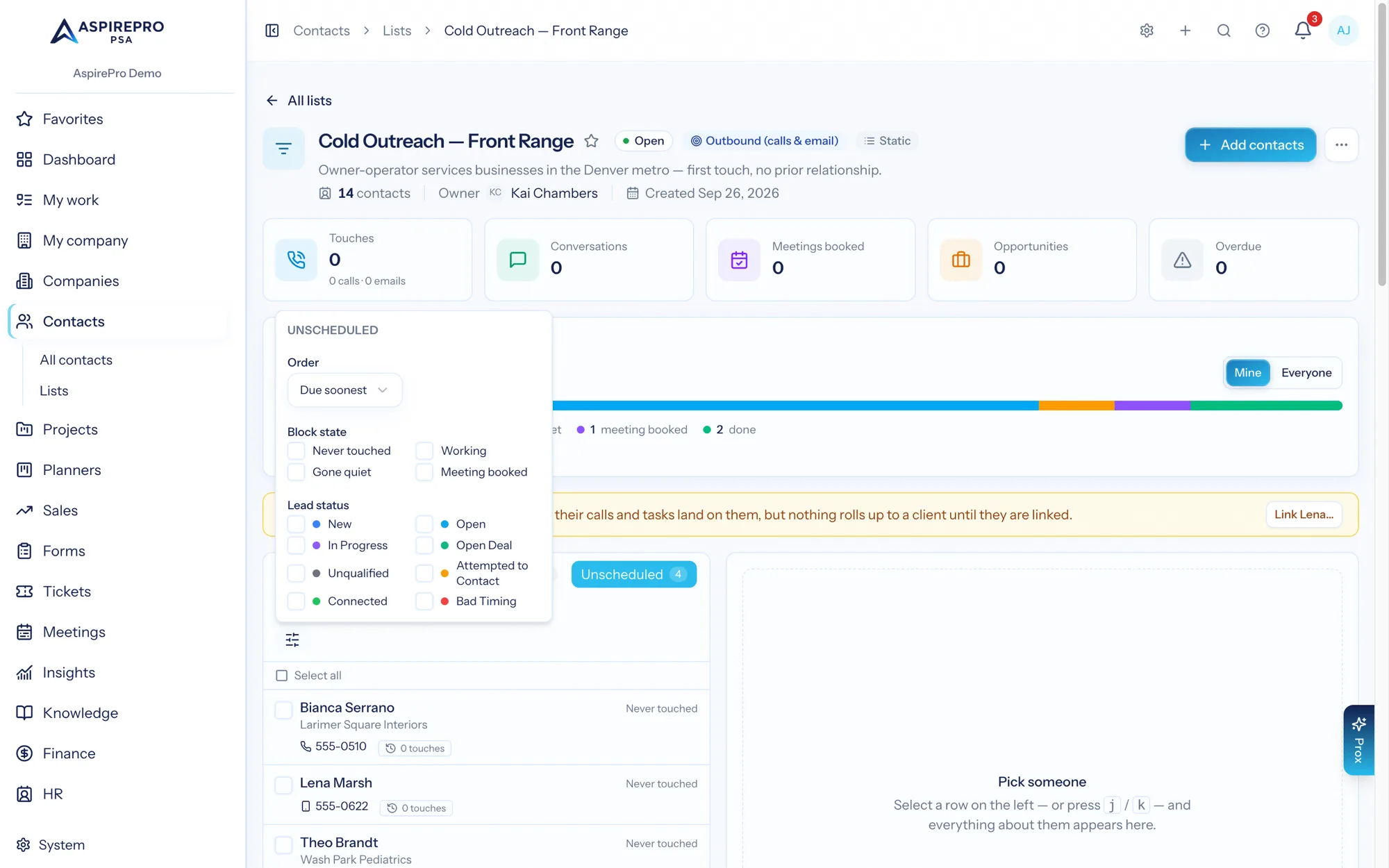
The pace bar on Today counts today's touches against the block's daily target, so "how am I doing" is answered without a report.
Working through it. j / k move down and up the list, l logs a touch on the selected person, x selects. Select several and Bulk actions acts on them: on the people tabs it offers Disqualify… (a terminal outcome on each, with a note), Add tag… and Remove from block; on All open it offers Reschedule to…, Complete as… and Set aside (defer). Large selections run in the background and you are told when they finish.
The person#
Pick a row and the panel beside the queue is the contact record, trimmed to what a rep needs:
- Who and how to reach them — every number with its kind (a handset for mobile, a desk phone for work, the building for a company's main line), each a click-to-call link, the default first; their email; their Lead Status, changeable in place. The pencil edits name, title, emails and phones right there — fix a typo or a wrong number on the call and it is saved, and synced, before you hang up.
- Open work — the next few follow-ups and tasks on them, HubSpot tasks included, each saying when it is for ("Scheduled for Sep 21, 2026, 8:46 AM", or "Due … · 3d ago" once it has slipped), with Complete and Snooze on each. Click one and the record's own activity dialog opens — read it, complete it, edit it, log the follow-up.
- Schedule and Log an activity — the record's own forms, with the block already chosen as where it was worked from.
- Notes — the first two in full, View N more for the rest, and a box to add one with an optional subject — the same editor as the Notes tab, so bold, lists, highlights and text colours are kept (and travel to HubSpot). You never have to open the record to read a note. With Company notes on (it is, until you turn it off) the list also carries the notes on the person's company: a note on the company itself is marked Company, and a note on a colleague there carries the colleague's name, so "we closed them out — PE-backed" is in front of you whoever you are calling. The person's own notes are never shown twice. Save on chooses whether the note you write goes on the person or on their company. The switch is yours alone and follows you to every block, including the note count on each row.
- Recent activity — the last few things that happened on either side: your calls and emails, replies that were captured, and anything copied from HubSpot (marked HubSpot). Click an email to read it.
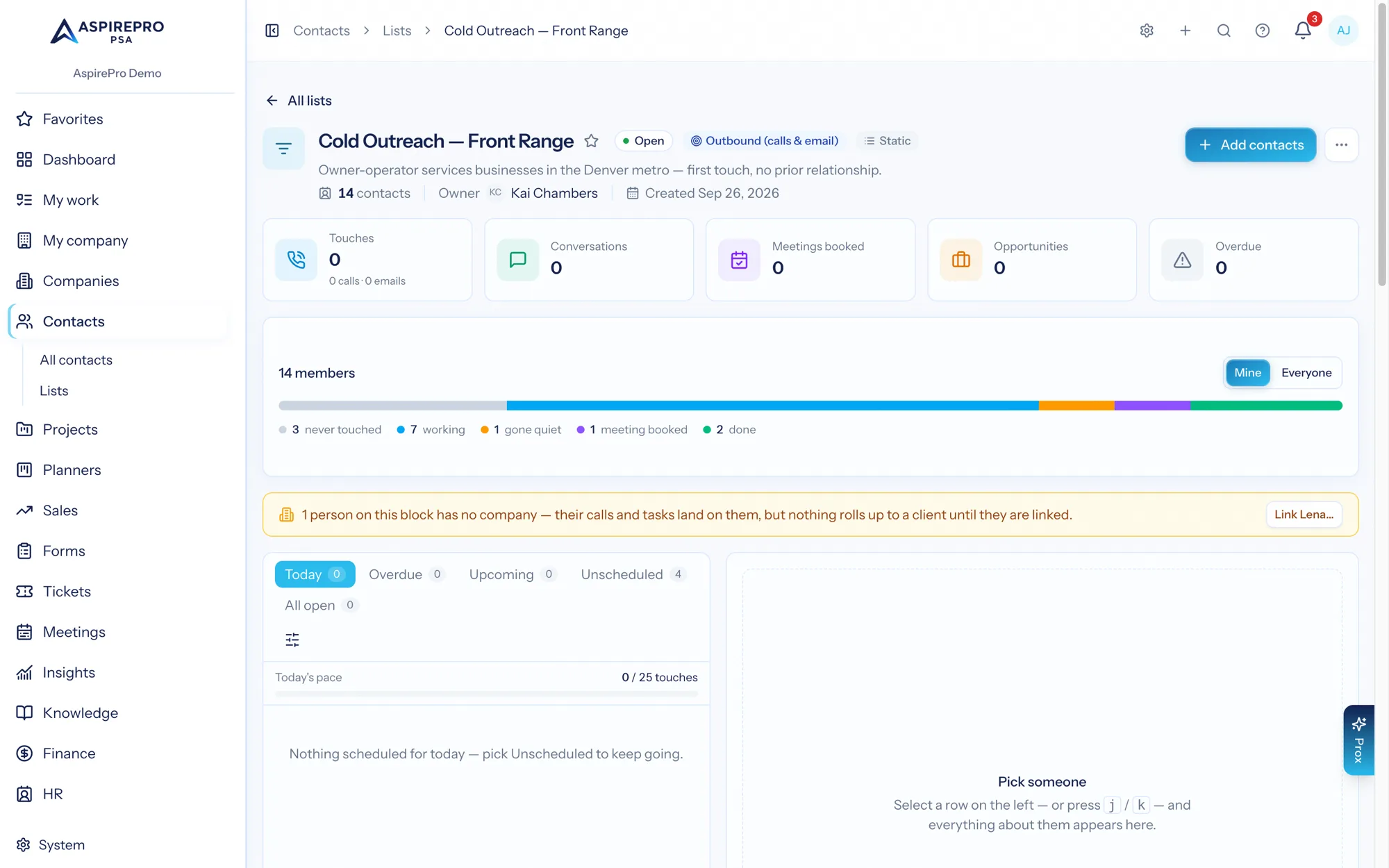
Log and Email sit in the panel's header. Everything written from the panel is stamped with the block, so it counts.
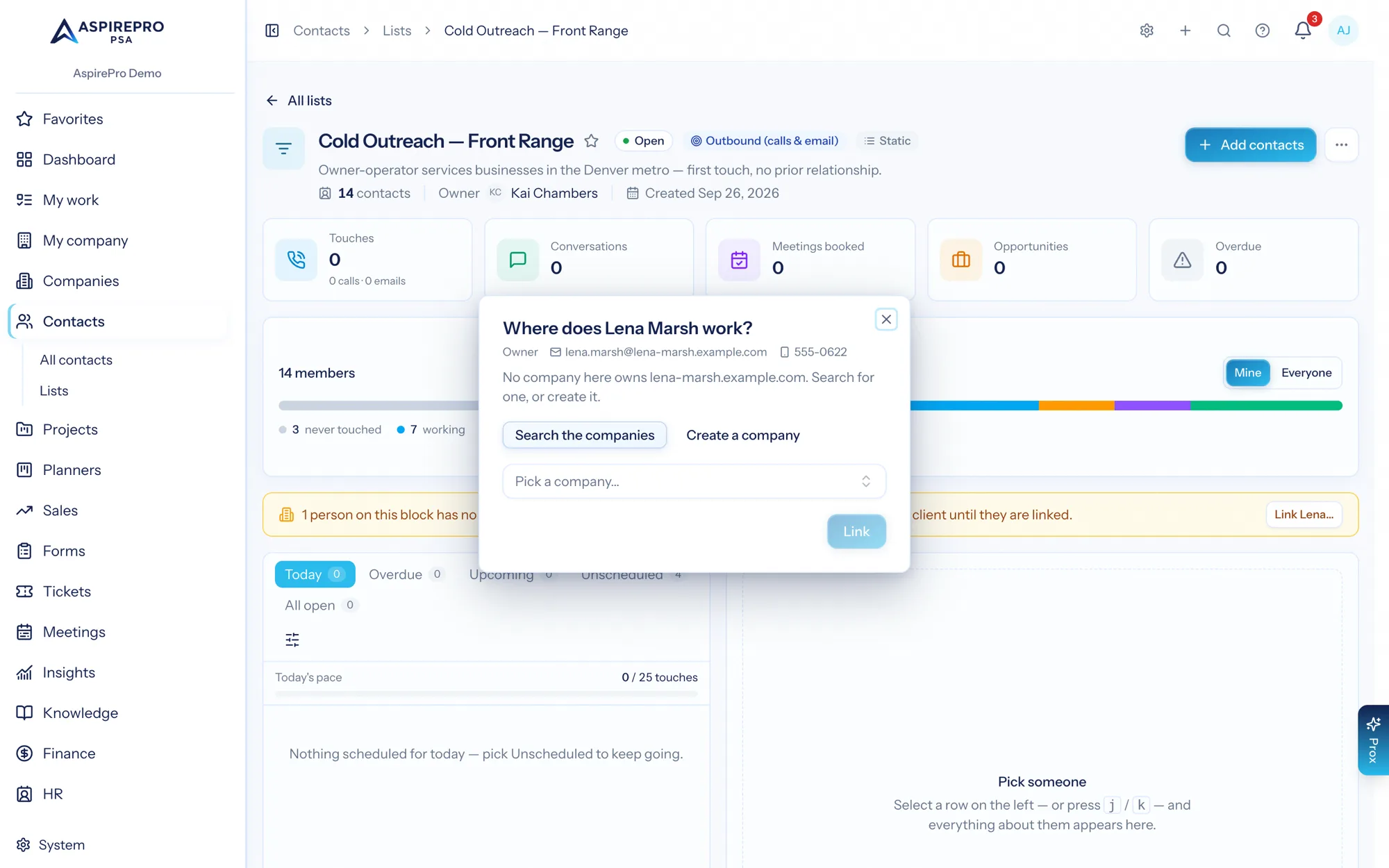
People with no company. A list that arrived from HubSpot often carries people with no company here. Their calls, tasks and emails still land on them — but nothing rolls up to a client until they are linked, so the page says so at the top and offers Link … on each. The dialog answers rather than asks: the company HubSpot has them at, or the one that owns their email domain, in one click; else search, or create the company from their name and domain. The day they get a company, everything they carried alone rolls up to it.
Everyone on the block#
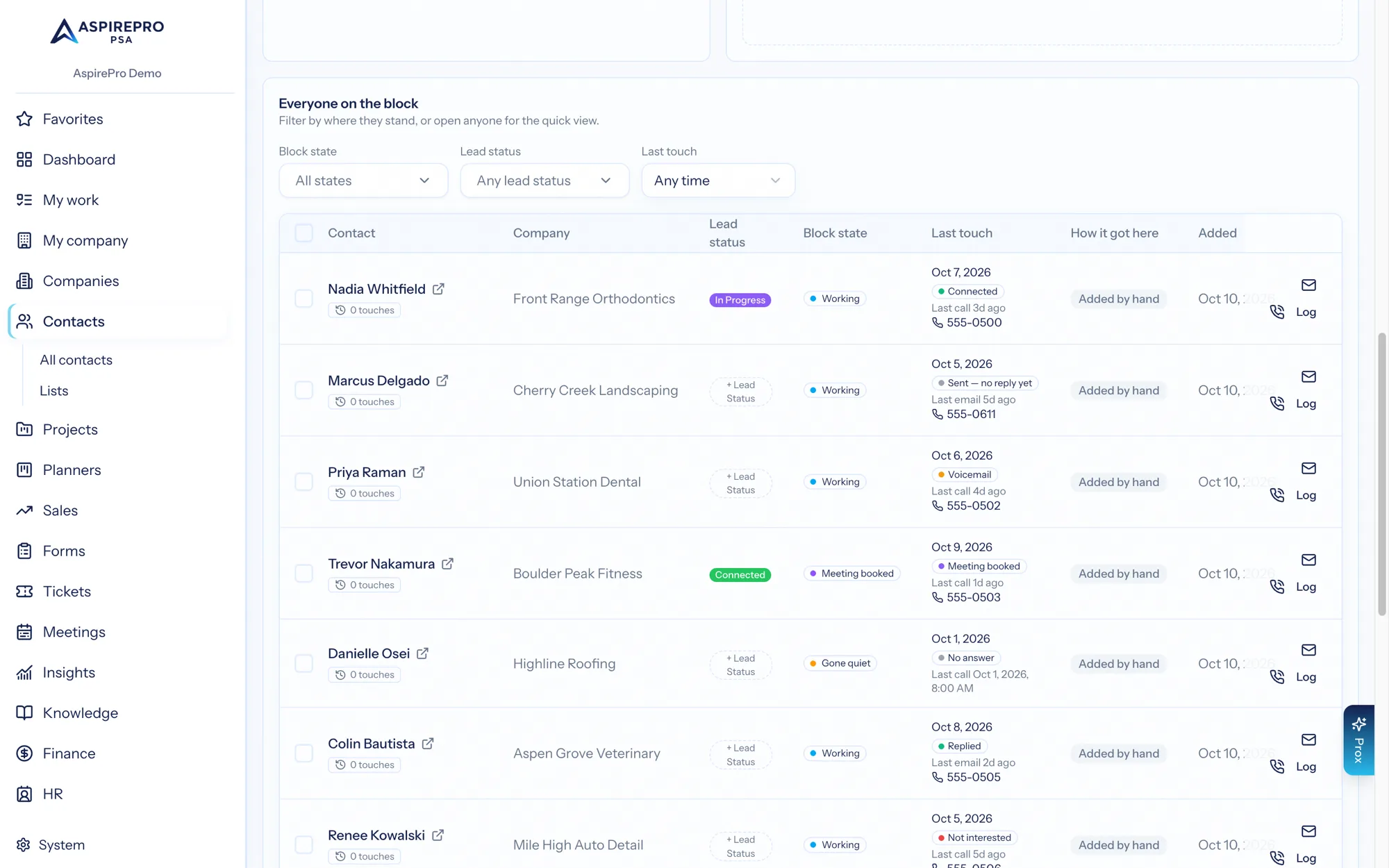
Underneath the queue sits the whole block: every member, with Lead status (HubSpot's field — change it from the chip) beside Block state (worked out here), the last touch with its outcome and "Last call / Last email", the number to dial, how they got here and when. Filter by state, Lead Status, last touch (never, last 7 days, 8–30 days, older) or — when HubSpot is connected — sequence (in one now, not in one, or a particular sequence; the person's sequence shows as a chip under their Lead status); click a name to open them in the panel, or the small icon beside it to open the record in a new tab. Select rows to remove them from the block; Add contacts at the top adds by hand or by criteria.
Working the block#
Press Log in the panel (or l on the selected row) and record the touch:
- What happened — the outcome. See Outcomes below.
- How long — a one-tap duration for calls. Emails have no duration.
- Notes — who you got, the hook you used, what they said.
- The next step — type and date, pre-filled from the block's setting.
- Create an opportunity — offered when the outcome is a positive one.
Between touches, use the panel instead of the record page: add a note, complete an open task, or schedule the next step in place. A completed task or a promised next step re-ranks the queue straight away.
For email, the Email button in the panel (or on a row of Everyone on the block) opens the composer right there on the block, already attributed to it, so the send counts without you having to remember anything. Emails send from your own connected mailbox — see the contact record.
Phone numbers#
A contact can carry several numbers — work, mobile, direct, home, fax, other — with one marked as the default (companies carry main, support, sales, fax and other lines the same way). That default is what every queue, the person panel, tickets and any other place a contact's number appears will dial, each with an icon that says what kind of number it is. A person with no number of their own is dialled on their company's main line, labelled as such. Mobile numbers sync with HubSpot's Mobile phone number and the default non-mobile number with its Phone number, both ways, so a number fixed on either side is right on both.
The one rule#
Every touch leaves with a next step. With No next step, no save on, a call or email logged from a block is refused unless it carries a scheduled follow-up — or unless the outcome is terminal (disqualified, do not call, unsubscribed), where there is nothing left to schedule.
This is deliberately a rule and not a reminder. A prompt you can dismiss lets you do the one thing the whole motion depends on you never doing: hang up without deciding what happens next.
Outcomes#
Every logged activity can record what happened. Outcomes belong to an activity type, so a call and a meeting offer different ones, and your organization can add its own — see company settings.
Out of the box:
- Calls — Connected · Callback requested · Meeting booked · Gatekeeper · Voicemail · No answer · Not interested · Disqualified · Do not call
- Emails — Sent — no reply yet · Replied · Meeting booked · Bounced · Not interested · Unsubscribed
- Meetings — Held · No-show · Rescheduled
Each outcome carries a hidden category — connected, not connected, positive, negative, or terminal. That is what makes connect rate a real number no matter what you rename things.
Two outcomes do more than record:
- Rescheduled marks the meeting cancelled, because it never happened and should not count as a touchpoint.
- An outcome can tag the contact, move their status, or set their Lead Status — "Disqualified" sets Unqualified out of the box, so the client's HubSpot sees the same ending you recorded.
- A terminal outcome finishes the person: every open follow-up and task on them — wherever it was promised, HubSpot tasks included — is completed, and a HubSpot task among them is completed in HubSpot too. (Setting a task aside with Defer marks it Deferred in HubSpot instead.) Nothing can be scheduled on a touch that ends with a terminal outcome.
Tags say why, status says hide. Use a tag to record why you stopped ("not interested", "do not contact"). Use Inactive only when you want the person to stop appearing by default — it is an administrative status shared with your contact filters, and it carries no reason of its own.
Email replies look after themselves#
Every email you send from AspirePro is logged as Sent — no reply yet. With an Outlook (Microsoft) mailbox, when the reply arrives the mailbox sync lands it on the same record and flips the original to Replied.
Google mailboxes are send only: AspirePro never reads them, so a reply stays in Gmail and the email stays Sent — no reply yet until you mark it. To get a Google reply onto a deal, BCC or forward it to the deal's BCC to log address (see Email & templates).
An Outlook (Microsoft) reply flips the outcome only when nobody has made a judgement already: if you marked the email "Not interested" or "Meeting booked", a later reply will not overwrite you.
Sizing a block#
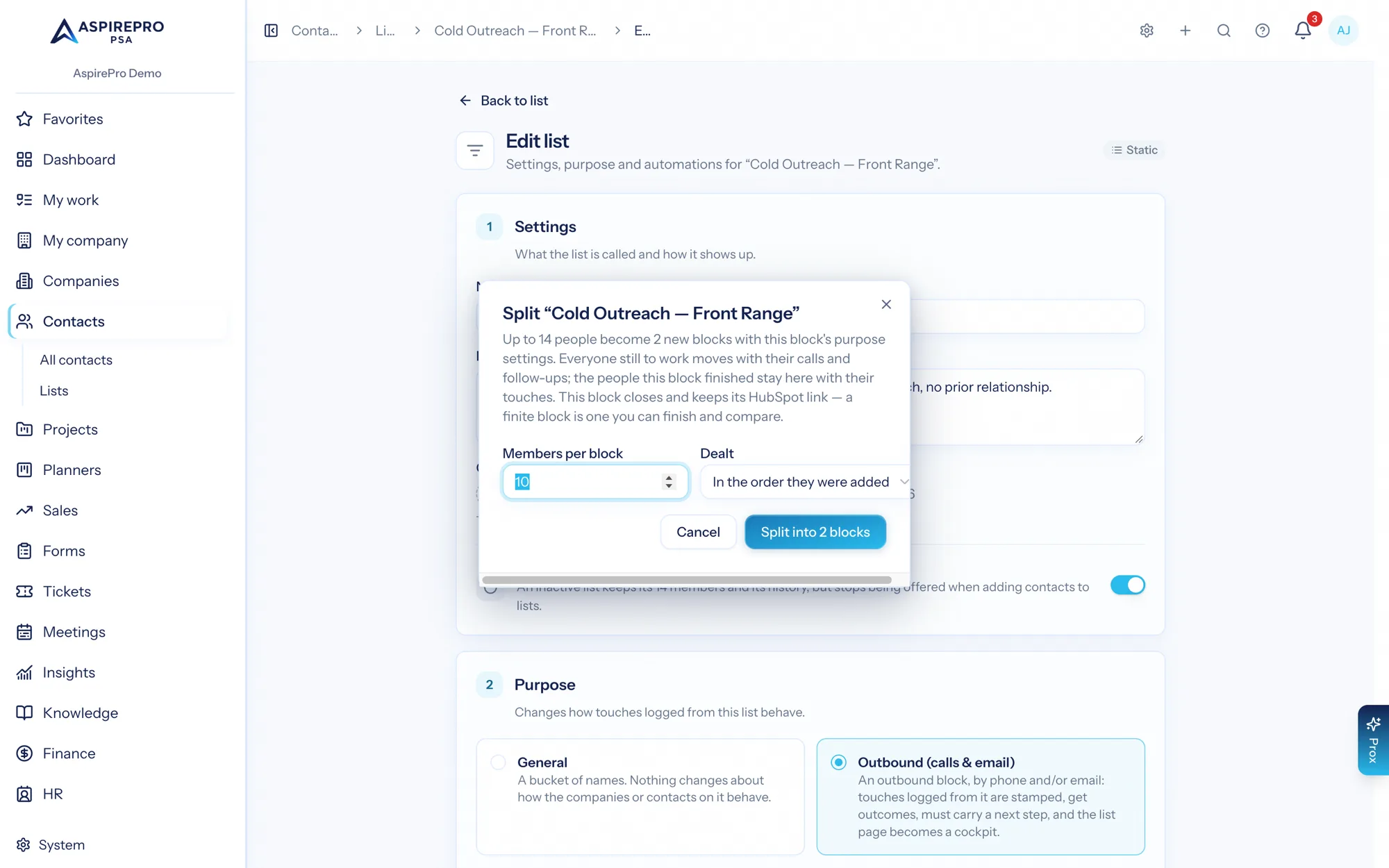
A block should be finishable. When a list is too big — a thousand names from a HubSpot list, say — open its Settings and press Split into blocks…: choose how many people a block holds and how they are dealt (in the order they were added, alphabetically so a block reads A–F, G–M…, or by industry kept together). Only the people still to work are dealt; anyone the block already finished stays behind with their touches. Each dealt person's calls and follow-ups go with them, so the new blocks know who has been reached and who went quiet. The original closes — keeping its members, its numbers and its HubSpot link.
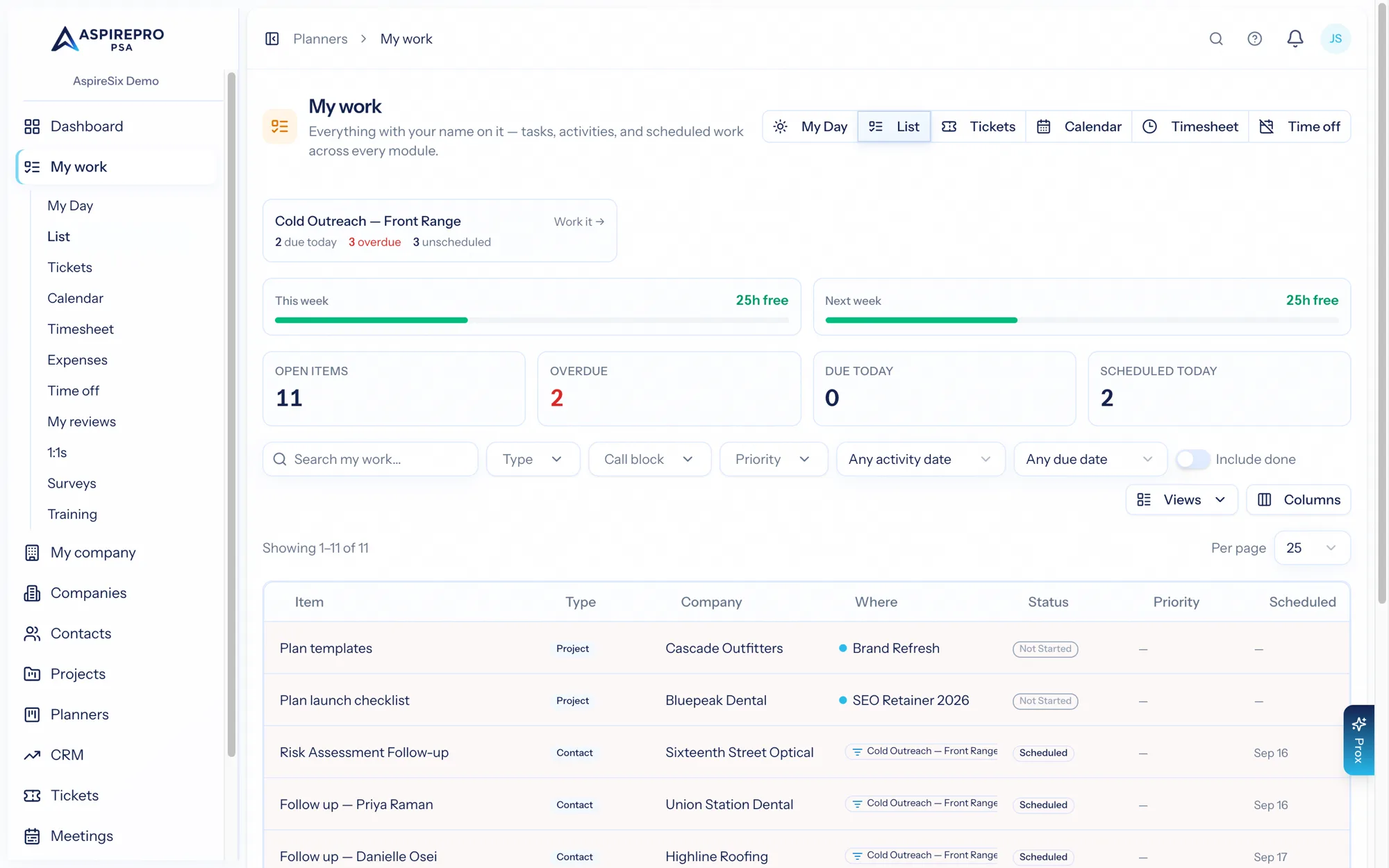
My work shows a card for every open block you have worked — due today, overdue, unscheduled — and Work it opens the block.
Finishing a block#
When a block is done, press Close block in its settings. The cockpit goes read-only and nothing new can be logged against it, but every activity, deal, and number stays exactly where it is. Reopen it any time.
Closing is what makes block-over-block comparison honest. Because each touch is stamped with the block it was worked from, the numbers stay true even after you add or remove members later.
Working a list that came from HubSpot#
The common setup: a client runs their HubSpot — sending emails and sequences, assigning tasks — and a BDR works the same people from AspirePro. With the HubSpot integration connected and contacts syncing Both ways, both sides see one history. Here is the workflow end to end.
1. Bring the list over. In HubSpot, put the people to be worked on a list. In AspirePro, an administrator opens System → Integrations → HubSpot, and on the Lists tab links that HubSpot list and picks a direction; AspirePro creates the matching list (or uses a static list here with the same name). People already synced with HubSpot — Import scope on the Sync tab decides who that is — join it with their HubSpot owner, Lead Status and synced fields; anyone not yet synced is left out until they are. A HubSpot Active list keeps its rules in HubSpot: people HubSpot adds or drops there are added or dropped here on the next sync, which is usually what you want for a working block.
2. Make it a block. Open the list's Settings and give it the Outbound purpose. Set the channels, the next-step default, and point Skip contacts tagged at your do-not-contact tag. Nothing about the HubSpot link changes; the list is now both.
3. Read the person before you dial. Pick the row; the panel fills. You will see the client's side of the story — the sequence emails they sent (each saying which sequence, and through which inbox), calls and meetings they logged, their notes — marked with the HubSpot sprocket, which links back, alongside anything already done here. The contact's Lead Status (HubSpot's field, synced as its own field on the contact) is on the record's Overview and is a column and filter on the contacts index, so "everyone still New on this list" is one click.
4. Do the tasks the client assigned. A HubSpot task assigned to you appears as a scheduled activity on the person, assigned to your AspirePro user (matched by your HubSpot owner email), due when the task is due, and it takes its place in Today / Overdue / Upcoming like any other follow-up — the row says "HubSpot task due". Press Complete on it in the panel; it completes in HubSpot too, and a next step you add at the same time is stamped with the block. Set one aside instead and HubSpot shows it Deferred.
5. Log the touch as usual. Log → outcome → duration → note → next step. The call lands in HubSpot on the contact as a logged call credited to you; the follow-up becomes a HubSpot task; a note you add from the panel becomes a HubSpot note. Emails you write from AspirePro travel too. Mail that merely arrived in your connected mailbox does not — HubSpot already has its own copy.
6. Move the Lead Status when the conversation earns it. Change it on the contact record (or ask Prox: "set Ann's lead status to Connected") and HubSpot has it within moments; change it in HubSpot and the contact here follows. It is deliberately separate from your own Status, Types and Tags, so the client's pipeline vocabulary never collides with yours.
7. Close the block, then look at both sides. Your cockpit numbers are stamped and honest; the client's HubSpot shows every touch on their own timeline. Nobody re-keys anything.
What to expect on timing: Lead Status is instant. What you log here reaches HubSpot right away; tasks and activities from HubSpot arrive within about five minutes. How that copying is doing — when each kind last ran, and anything skipped and why — is on the HubSpot settings page, on the Activities & tasks tab. A contact needs no company here for their tasks and emails to land; they simply do not roll up to a client until the person is linked to one.
Measuring it#
Add these to any dashboard from Insights, or start from the Outbound dashboard template:
Metric | Answers |
|---|---|
Dials per Day | Am I making the calls? |
Connect Rate | Am I reaching people? Pick the Email type for reply rate. |
Calls by Outcome | What is actually happening on them? |
Call Block Funnel | Members → reached → calls & emails → conversations → meetings → opportunities → won, for one block |
Meetings per 100 Touches | Which segment is worth working? |
Outbound Blocks | Every open block and where it stands |
The last three are what answer "was this list worth working?" — a question deal sources alone can never answer, because attribution tells you where a deal came from but not what it cost in effort.
Working through Prox#
Prox can run the loop with you:
get_list_cockpit— where a block stands and who to call next; pass alens(today / overdue / upcoming / unscheduled / tasks) for a page of the block's queuelist_contact_activities— a person's history across both systems, with each row's origin and HubSpot linklog_contact_activity/log_company_activity— passrecord_list_idand anoutcometo log a touch that countscomplete_contact_activity— close out a follow-up or a HubSpot taskcreate_contact_note— a note on the person, which syncs (and shows on their company)create_company_note— a note on the company itself, which syncsupdate_contactwithlead_status— move the HubSpot Lead Status by namesend_contact_email— write and send from a contact recordmanage_list— set a purpose, daily target and done Lead Statuses; close or reopen a blockmanage_list_automation— the rules that fire when someone joins or leaves the list
A day in a block#
- Build the block. Make a list, give it the Outbound purpose, add your names — and split it if it is bigger than you can finish.
- Research first, dial second. Do your homework in one sitting; don't research mid-block.
- Open the block. Start on Today, clear Overdue, then pull from Unscheduled — never touched first, then gone quiet.
- Read the panel before each dial. The right number, open work, the latest note, what the client did last.
- Log every touch with an outcome and a next step. The rule enforces the second half.
- Convert as you go. A positive outcome offers the opportunity right there.
- Close the block when it's spent, and compare it against the last one.
For the method behind all of this — why blocks are finite, why outcomes beat activity counts, and what to change when the numbers are bad — read the guide: How to work a cold outreach list.