AspirePro uses the same layout on every screen, so once you know your way around one module you know your way around all of them.
The layout#
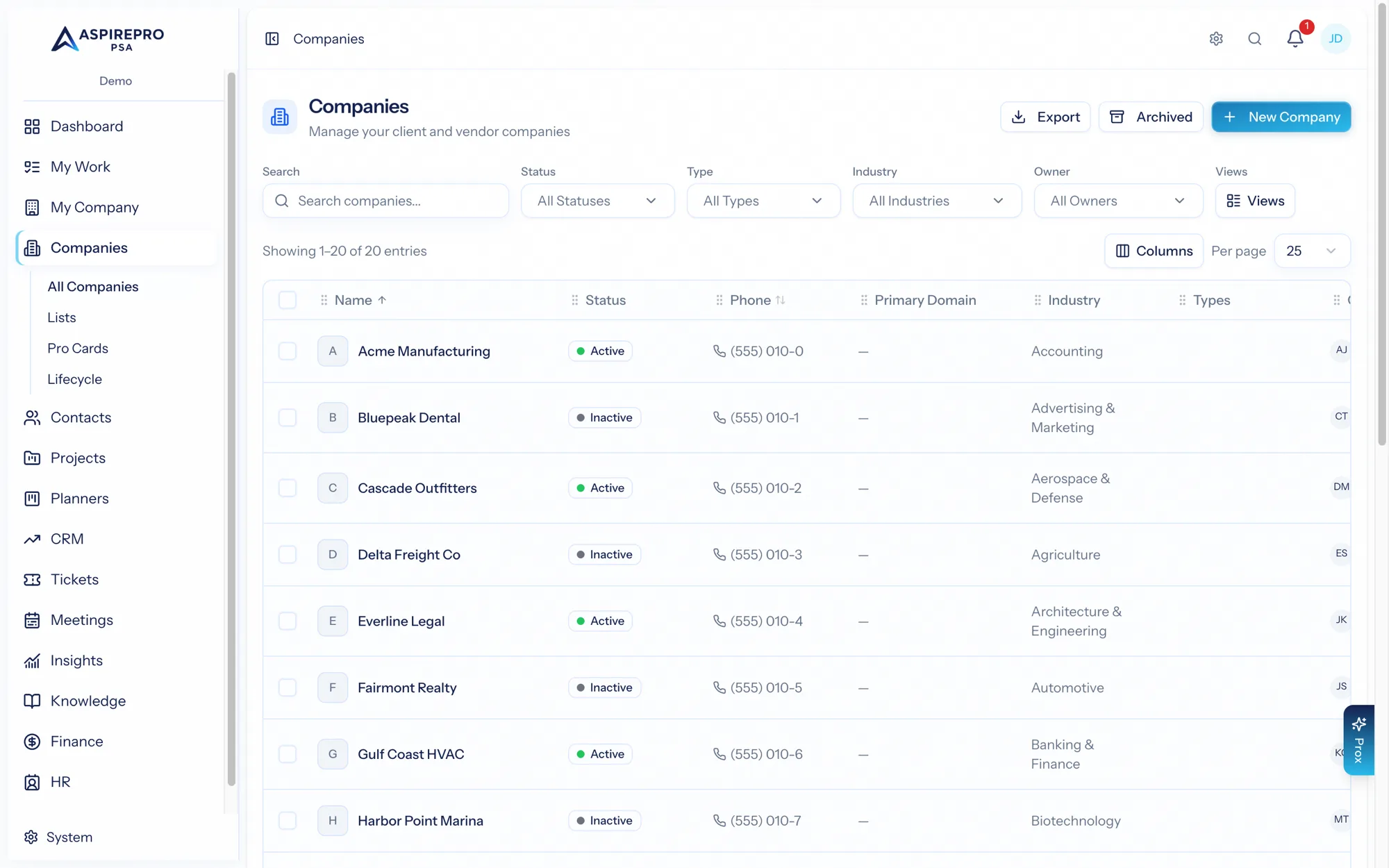
Every page shares three regions:
- The left sidebar — your navigation. It lists the modules your organization has enabled and your role can reach, grouped from the personal (Dashboard, My Work) at the top down to Companies, Contacts, and each module. An administrator's sidebar also shows System at the bottom.
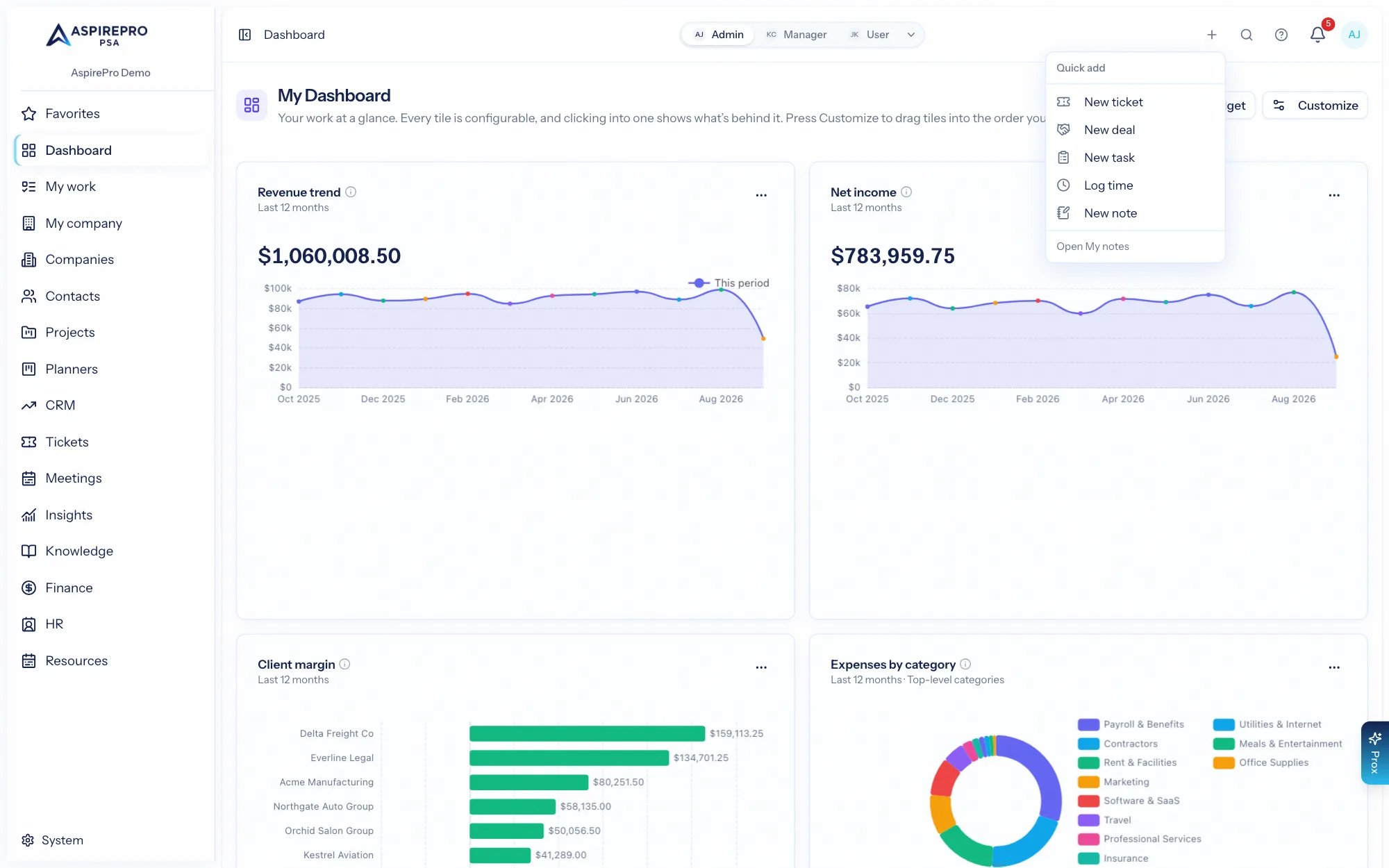
- The top bar — Quick add (a new ticket, deal, task, time entry or a private note from any page, without leaving it), global search, the Help menu (documentation, bug reports, and support requests), the notifications bell, and the Prox assistant button, always within reach.
- The main area — the module you're working in.
You can collapse the sidebar to give the main area more room; your choice is remembered.
Make the sidebar yours#
The sidebar isn't fixed — three personalizations are remembered per user:
- Rearrange the menu. Click the rearrange button at the top of the sidebar (the up-down arrows), drag the module entries into whatever order matches how you work, then click the check to finish. The order saves automatically.
- Favorites. Hover any sidebar entry and click the star to pin it to a Favorites group at the top of the sidebar — a module, a specific view like My Work → Calendar, or an individual Project or Planner you starred. Unstar to remove; the group hides itself when empty.
- Default project tab. On any project, hover a tab in its left-hand navigation and click the pin to make it your landing tab — for example, pin Tasks and every link to any project (from Favorites, a notification, a dashboard widget, anywhere) lands you on Tasks instead of Overview. Click the pin again to reset, and use the explicit Overview tab whenever you want the overview.
Navigating modules#
Click a module in the sidebar to open it. Most modules follow the same shape:
- A list or board of records (companies, deals, tickets, projects…).
- A record page you open by clicking a row, with tabs across the top for its different facets (overview, activities, documents, audit, and so on).
- A settings area — usually a gear icon or a "Settings" entry — where an administrator configures that module's statuses, types, tags, and automations.
Because the shape repeats, the skills transfer: filtering a list, saving a view, or running a bulk action works the same whether you're in Companies or Tickets.
Quick add#
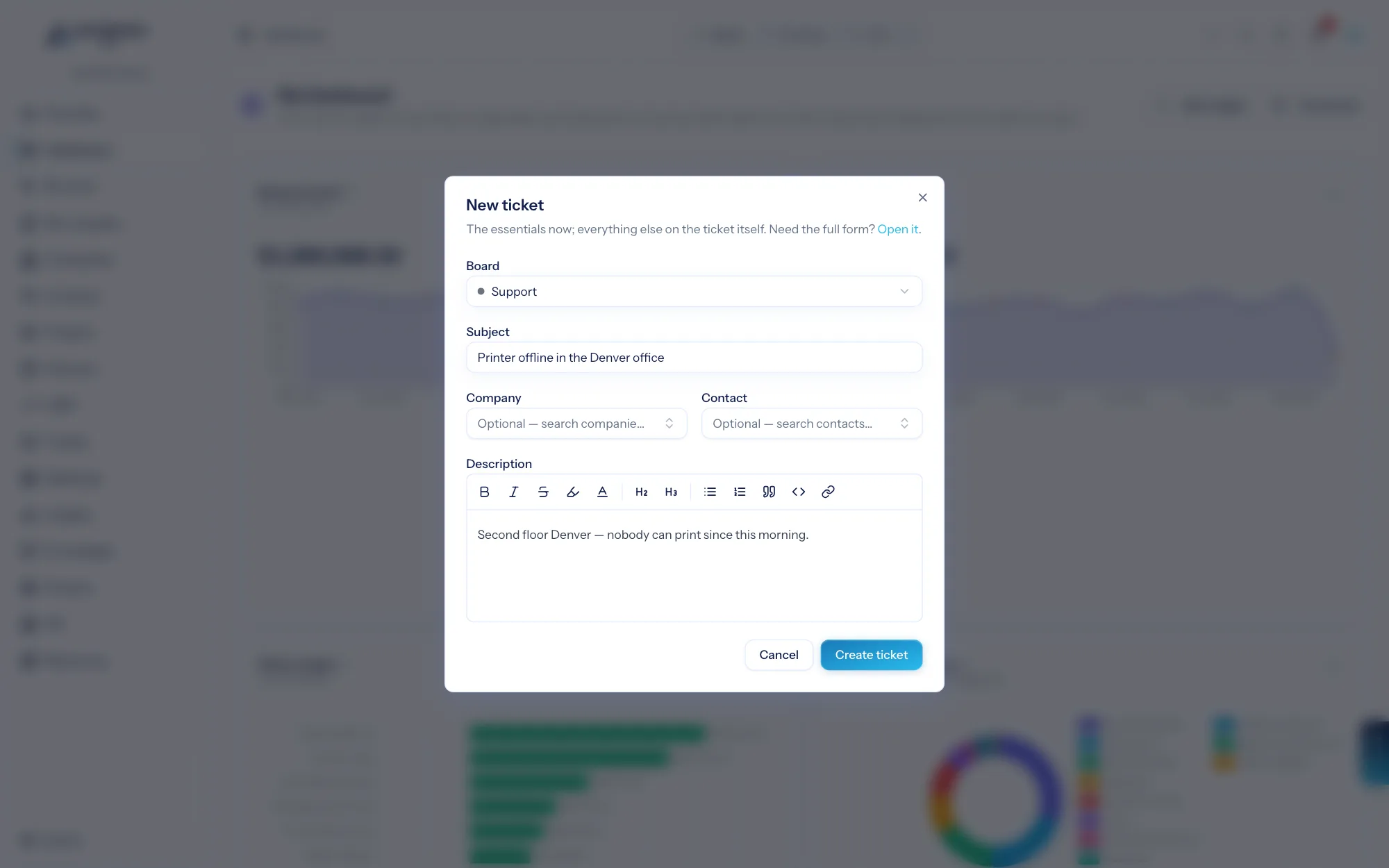
The + in the top bar adds the things you create most, from wherever you are: a ticket, a deal (named the way your pipelines name them, e.g. "New opportunity"), a task in any planner or project you can edit, a time entry (the same Log time dialog as your timesheet), or a private note. Each opens as a dialog over the page you're on, so you don't lose your place; the ticket dialog asks only for the essentials — board, subject, company and contact, a description — and takes you to the new ticket when you save.
Global search#
The search box in the top bar looks across your organization — companies, contacts, and more — and jumps you straight to a record. It's the fastest way to get somewhere when you already know the name.
For finding sets of records that match criteria (all active clients in Minnesota, all open high-priority tickets), use a module's own filters and saved views instead — covered next.
Lists, filters, and saved views#
Every list-based module shares one powerful pattern:
- Filter the list by any of its fields — status, owner, type, tags, dates, and more.
- Sort and choose which columns to show.
- Save that combination as a saved view so you can return to it in one click. Views can be personal or shared with your team.
This "list + filter + saved view" pattern is the same everywhere, so it's worth getting comfortable with. Companies is the canonical example — see Views & bulk actions.
Bulk actions#
Select several rows in any list and a bulk toolbar appears, letting you act on all of them at once — change status, reassign an owner, add a tag, archive, and so on. The exact actions depend on the module.
Working with records#
Inside a record you'll find familiar building blocks across modules:
- Activities — a timeline of what's happened (emails, notes, status changes).
- Notes — rich-text notes you and your team add.
- Documents — files attached to the record, with tags.
- Audit — an immutable log of every change, who made it, and when.
Notifications#
When something needs your attention — an assignment, a mention, an approval, an overdue item — it shows up in the notifications bell in the top bar and, depending on your preferences, by email. See Notifications.
Getting help & support#
The Help menu (the question-mark icon in the top bar) is your direct line:
- Help for this page — opens the documentation page most relevant to where you are in the app.
- Browse all docs — opens this documentation site.
- Report a Bug / Submit a Ticket — a short form that goes straight to the AspirePro support team, with the page you were on included automatically. Replies come to your account email.
Getting help from Prox#
Stuck, or just want a shortcut? Open Prox from the top bar and ask. "Show me my open tickets," "create a company called Acme," "what changed on this project this week?" — Prox works from your live data and respects your permissions. See Meet Prox.