Signing in#
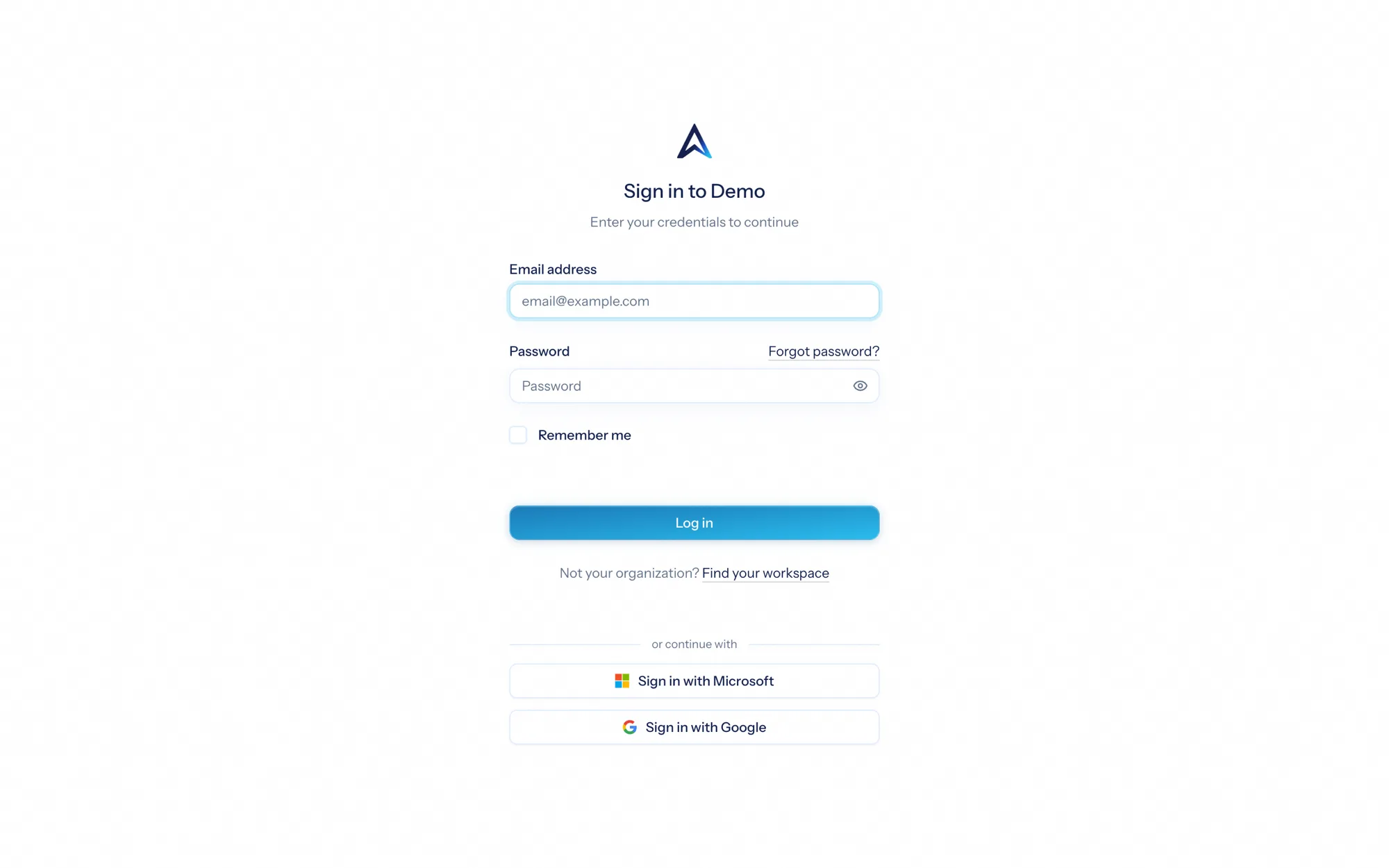
Your organization lives at its own address — your-organization.aspirepro.io. Go there and sign in with your email and password, with single sign-on if your organization has it enabled, or with a passkey once you have added one.
If you're not sure of your organization address, sign in from the central app and pick your organization from the list.
Single sign-on (SSO)#
AspirePro supports signing in with Microsoft and Google. If your administrator has enabled SSO, you'll see a "Continue with Microsoft" or "Continue with Google" button on the login page — one click and you're in, no separate password to remember. Which providers appear depends on your organization's configuration.
Passkeys (Face ID, Touch ID, Windows Hello)#
A passkey lets you sign in with your face, your fingerprint or your device PIN instead of typing a password — one tap on a phone, and no code from an authenticator app afterwards.
What a passkey is#
When you add a passkey, your device creates a pair of keys for your AspirePro organization. The private half never leaves the device (on an iPhone it lives in the Secure Enclave); AspirePro keeps only the public half. Signing in means your device signs a one-time challenge from us, and we check that signature. Face ID or Touch ID is simply how your device decides to unlock its key — your face or fingerprint is never sent to AspirePro, and there is nothing biometric in our database.
Because a passkey is something you have (the device) plus something you are or know (the biometric or PIN that unlocks it), it already counts as two-factor sign-in. That is why you are not asked for an authenticator code after using one.
A few things that follow from the design:
- It cannot be phished. A passkey for
your-organization.aspirepro.iowill not sign for a look-alike address, however convincing the page. - It is tied to one organization. If you belong to more than one, add a passkey in each.
- It travels with your keychain. On Apple devices passkeys sync through iCloud Keychain, on Android through Google Password Manager, so a new phone usually just works. A hardware security key (YubiKey and the like) works too and stays on the key.
- Your password still works. A passkey is an extra way in, not a replacement. If your device is lost, sign in with your password and remove the passkey from Account settings → Security.
Adding a passkey#
- On the device you want to sign in from, go to Account settings → Security.
- Under Passkeys, choose Add a passkey. You will be asked to confirm your password first — a passkey is a full way into your account, so enrolling one is protected the same way changing your password is.
- Give it a name you will recognise later, such as iPhone or Work laptop, and choose Continue.
- Approve the prompt from your device — Face ID, Touch ID, Windows Hello, your PIN, or a touch on a security key.
The passkey appears in the list with the date it was added and the last time it was used. Add one on each device you sign in from.
Signing in with a passkey#
On the login page, either:
- tap Sign in with a passkey, choose the account if your device holds more than one, and approve the prompt; or
- tap into the email address field — on a phone your saved passkey is offered above the keyboard, and on a desktop browser in the autofill list. Pick it and approve the prompt.
There is no email step and no code afterwards: your device has already proved which account it holds a key for, and that the person unlocking it is you.
Installed on your home screen? Passkeys work in the installed AspirePro app on iOS 17 and later, and in Safari on iOS 16. On Android, Chrome supports them in both.
Renaming or removing a passkey#
Both are under Account settings → Security → Passkeys. Rename with the pencil; remove with the bin, which asks for your password again. Remove a passkey as soon as you stop using a device — the same habit as signing out other sessions.
Accepting an invitation#
New team members join by invitation. When an administrator adds you, you'll receive an email with a link to set your password and join the organization. Follow it, choose a password, and you'll land on your dashboard. The invitation is tied to your email address, so use the same address you were invited with.
One email address can belong to more than one organization — for example, if you're a contractor working with several organizations. Signing in to each is independent.
Resetting your password#
Forgot your password? Use the "Forgot password?" link on the login page. You'll get an email with a secure link to set a new one. Links expire after a short window for safety; request a fresh one if it lapses.
Two-factor authentication (2FA)#
Two-factor authentication adds a second step to sign-in — after your password, you enter a rotating code from an authenticator app — so a stolen password alone can't get into your account.
To turn it on:
- Go to Account settings → Security.
- Under Two-factor authentication, choose Enable.
- Scan the QR code with an authenticator app (Google Authenticator, 1Password, Authy, and the like).
- Enter the code the app shows to confirm.
- Save your recovery codes somewhere safe — they're your way back in if you lose your device.
From then on, you'll enter a code from your app each time you sign in with your password on a new device. Signing in with a passkey skips the code — the passkey is already two factors.
Your administrator may require two-factor authentication for everyone in the organization. If so, you'll be prompted to set up an authenticator app the next time you sign in and won't be able to skip it — even if you also use a passkey, so that your password remains protected as a fallback.
Managing your sessions#
Every device you're signed in on shows up under Account settings → Sessions. If you see a session you don't recognize — or you signed in on a shared computer — you can sign it out remotely from there. Signing out other sessions is a good habit after using a device that isn't yours.
Signing out#
Use the account menu (your avatar) to sign out. On shared or public computers, always sign out when you're done, and consider signing out your other sessions from Account settings → Sessions as well.