Your personal settings live under Account settings (from your account menu). These are yours — they affect only your experience, not the whole organization. Organization-wide configuration is under System settings and requires administrator permissions.
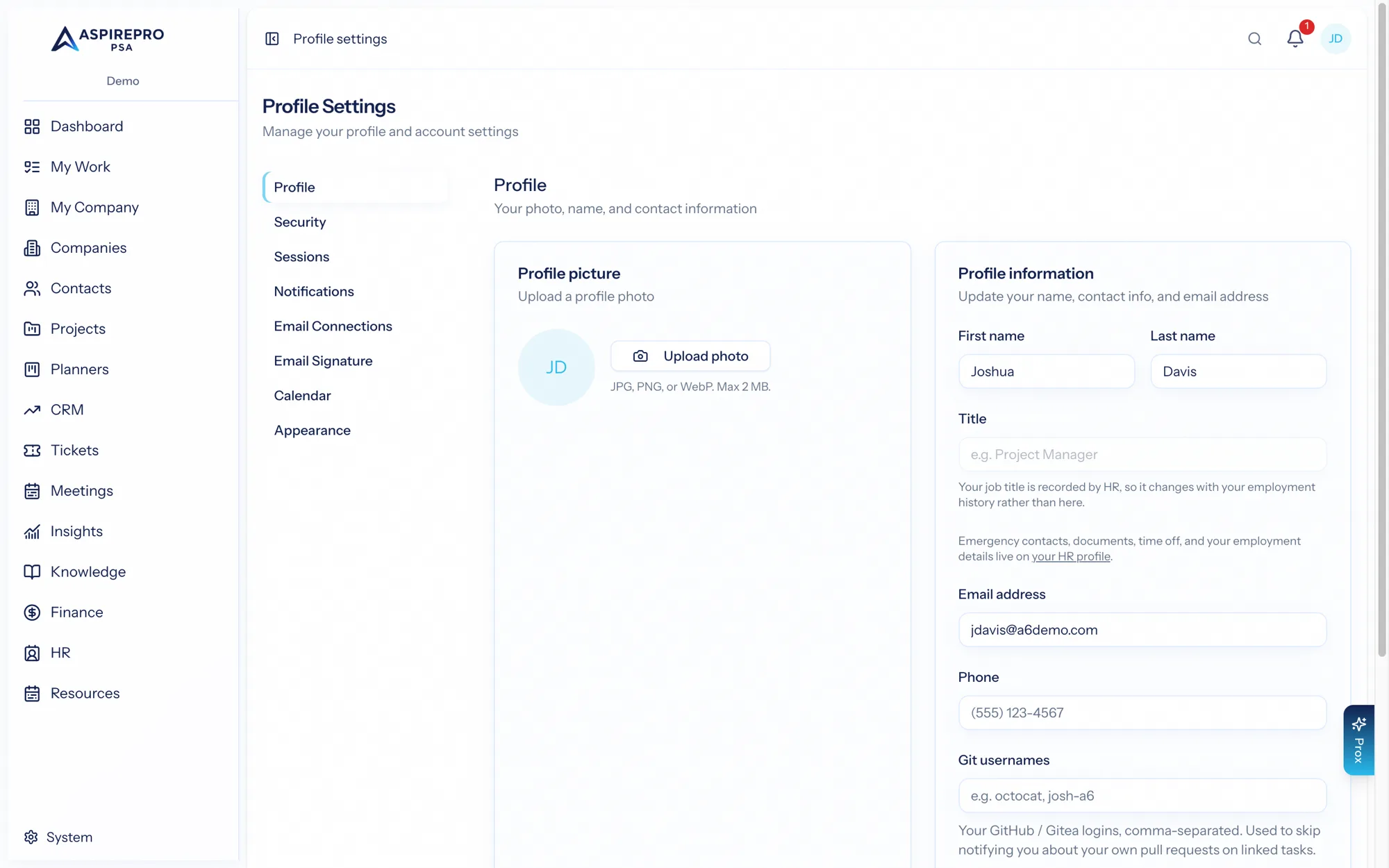
Profile#
Account settings → Profile is where you set your name, avatar, job title, and contact details — the identity your teammates see next to your work. Keep your name and photo current; they appear on everything you're assigned to.
Appearance#
Account settings → Appearance lets you choose light, dark, or system theme. "System" follows your operating system's setting and switches automatically. Your choice is remembered on every device you sign in on.
Security#
Account settings → Security is where you change your password, add passkeys (Face ID, Touch ID, Windows Hello, security keys) and manage two-factor authentication. See Accounts & signing in for the full walkthrough.
Notification preferences#
Account settings → Notifications controls how you're notified — in-app, by email, or both — for each kind of event (assignments, mentions, approvals, overdue items, and more). Tune it so you hear about what matters and stay quiet on what doesn't. The organization-wide defaults are set by an administrator; your preferences override them for your account.
Connected accounts#
Several features work better when you connect your work accounts. These connections are personal — they link your mailbox and calendar, not the whole organization's.
Calendar#
Account settings → Calendar connects your Microsoft or Google calendar so your meetings appear in AspirePro (in My Work's calendar view and the scheduler) and events you create sync back. Connect the provider, approve access, and your calendar syncs both ways.
Email#
Account settings → Email connections links your mailbox so you can send and log email from inside AspirePro — replies on a deal, a ticket, or a contact are sent as you and captured on the record.
Email signature#
Account settings → Email signature is where you compose the signature appended to email you send from AspirePro, so your messages look consistent with the rest of your correspondence.
Email templates#
Emails you send again and again belong in System → Email templates. You don't need administrator access to use it: anyone who sends from a contact or a deal can open it, from the Manage templates link in the composer or the link on Account settings → Email signature. New templates are yours alone until you share them with the team. See Email & templates.
Task templates aren't personal#
Task templates used to sit here. They're shared by everyone in your organization, so they've moved to Projects → Settings → Task templates and Planners → Settings → Task templates. It's the same list in both places.
What's personal vs. organization-wide#
Personal (Settings) | Organization-wide (System) |
|---|---|
Your profile, avatar, title | Organization name, timezone, defaults |
Your theme | Which modules are enabled |
Your notification preferences | Notification defaults, mail settings |
Your connected calendar & mailbox | Users, roles, security policy |
Your signature & task templates | Billing, teams, audit log |
If a setting affects other people, it lives under System and needs administrator permission. If it only affects you, it's here under Account settings.