CRM lets you send and log email right from a deal, so your sales correspondence lives on the record instead of scattered across inboxes.
Sending email from a deal#
Use Send Email on a deal to open the email composer — a floating panel you can move, resize, and minimize while you work. Your draft is kept as you switch tabs, so you won't lose a half-written message. The composer gives you:
- To (required), with CC and BCC as chips you can drag between fields.
- A template picker to start from a saved template (see below).
- A subject (it defaults to the deal name) and a rich-text message with merge tokens.
- Attachments — upload new files (they're saved to the deal's Attachments tab) or pick existing deal documents. Up to 10 files, 10 MB each, 15 MB total.
- An append my signature toggle (your signature is set under Account settings → Email signature).
Sending from a contact record#
The same composer sits on every tab of a contact record, behind Send Email in the header. It works exactly as it does on a deal — merge fields, templates, signature, attachments from that contact's Documents — and the send is logged on the contact's timeline, rolling up to their company.
Use it when the conversation is with a person rather than about a deal: cold outreach, an introduction, a follow-up on someone who has no opportunity yet. When you are working an outbound block, sending this way also counts toward that block.
Sending as you#
Email is sent through your connected mailbox — so it comes from you, threads naturally, and lands in your Sent items. If you haven't connected a mailbox yet, the composer prompts you to connect one under Account settings → Email connections; AspirePro won't quietly send from a generic system address on your behalf.
Every send logs an activity on the deal's feed, and sent emails show open and click tracking so you can see engagement.
Logging replies and inbound email#
With a Microsoft 365 mailbox connected, replies to what you sent from the deal are captured automatically. To log anything else — or any reply, when your mailbox is Google, which AspirePro only sends through — use the per-deal BCC to log address shown on the deal's Details card: BCC it on an email (or forward a message to it) and the message is logged to that deal. Microsoft 365 users see a plus-addressed version of their own address there; Google users see the deal's own address.
Logged emails appear in the feed alongside everything else, and each message is recorded once however it arrived.
Email templates#
Reusable email templates save you retyping common messages. A template is a subject and body with merge placeholders (for example {{contact.first_name}}) that fill in from the deal's or contact's data when you send.
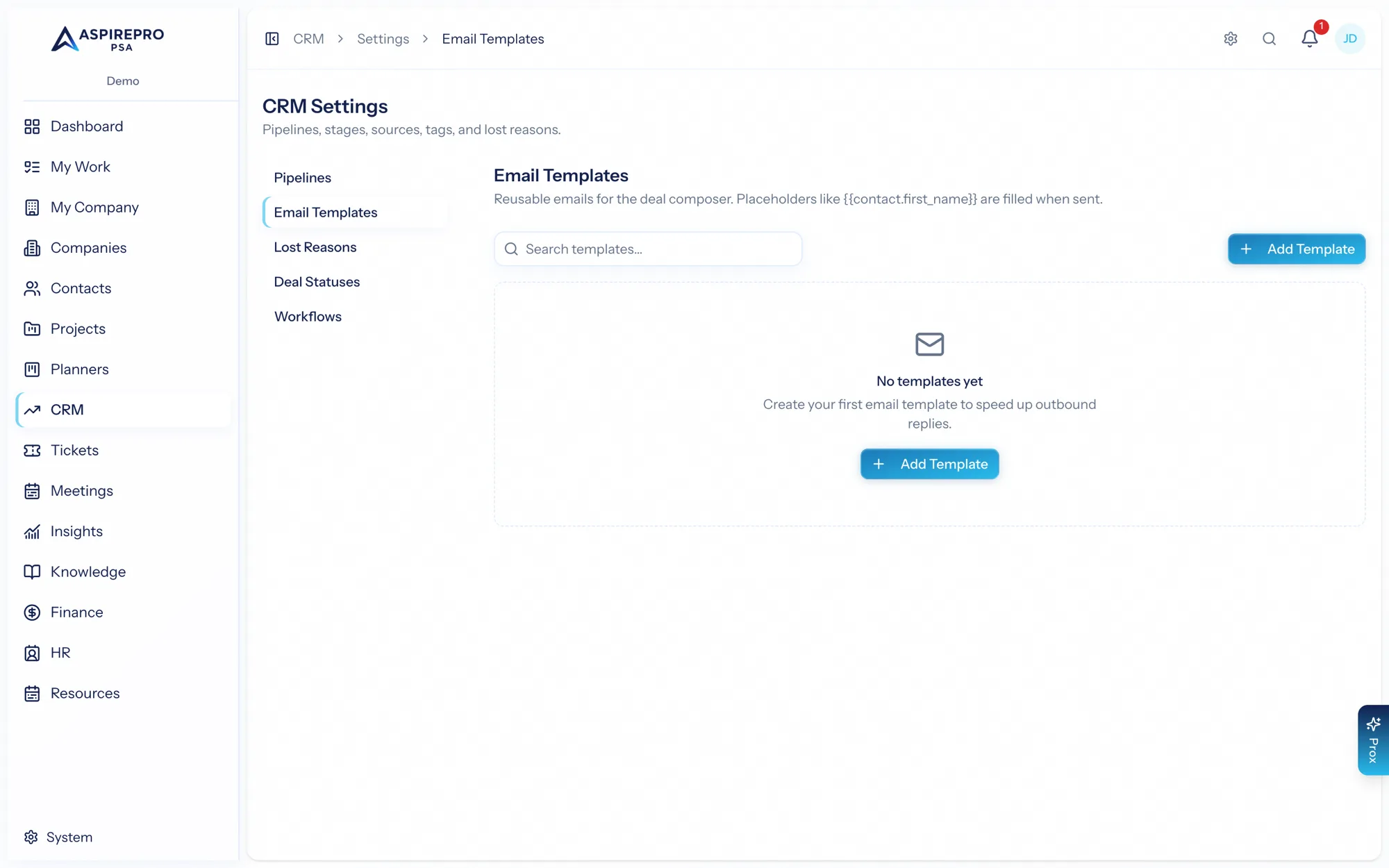
Templates live under System → Email templates. You don't need administrator access: anyone who can send email from a contact or a deal can open it. You'll usually get there from the Manage templates link in the composer, or from Email templates in the settings menu (the gear at the top right) on Contacts, Lists, and CRM pages.
Yours, and the team's#
Every template is either:
- Just you. Only you see it, in the composer and on the templates page. New templates start here.
- Shared. Everyone in your organization can use it.
When you create a template, choose Who can use it. To publish one you've been using yourself, open its menu and choose Share with the team. That's all it takes: no form, no approval. If the shared library already has a template with that name, you're asked for a different one.
Once a template is shared, you can still edit it because you wrote it. People who hold Manage shared email templates can also edit, switch off, or delete any shared template, and so can tidy up the library. Everyone else can view a shared template or Duplicate it into their own templates and change the copy.
To take a template back, choose Make this private again. It returns to the person who wrote it, even when a curator presses the button. If the template was sent recently, you're warned before it leaves the library.
Nobody else can see your private templates, not even an administrator.
Using a template#
In the composer, open Template and pick one. My templates are listed first and Shared after them. Picking one fills in the subject and body, and you can edit both before you send.
Tickets has its own reply templates, set up per board under Tickets → Settings → Email templates. They're separate from these.
Email sending is rate-limited to protect deliverability, and each send can trigger workflows (there's an "email sent" trigger) — useful for automatic follow-up reminders.