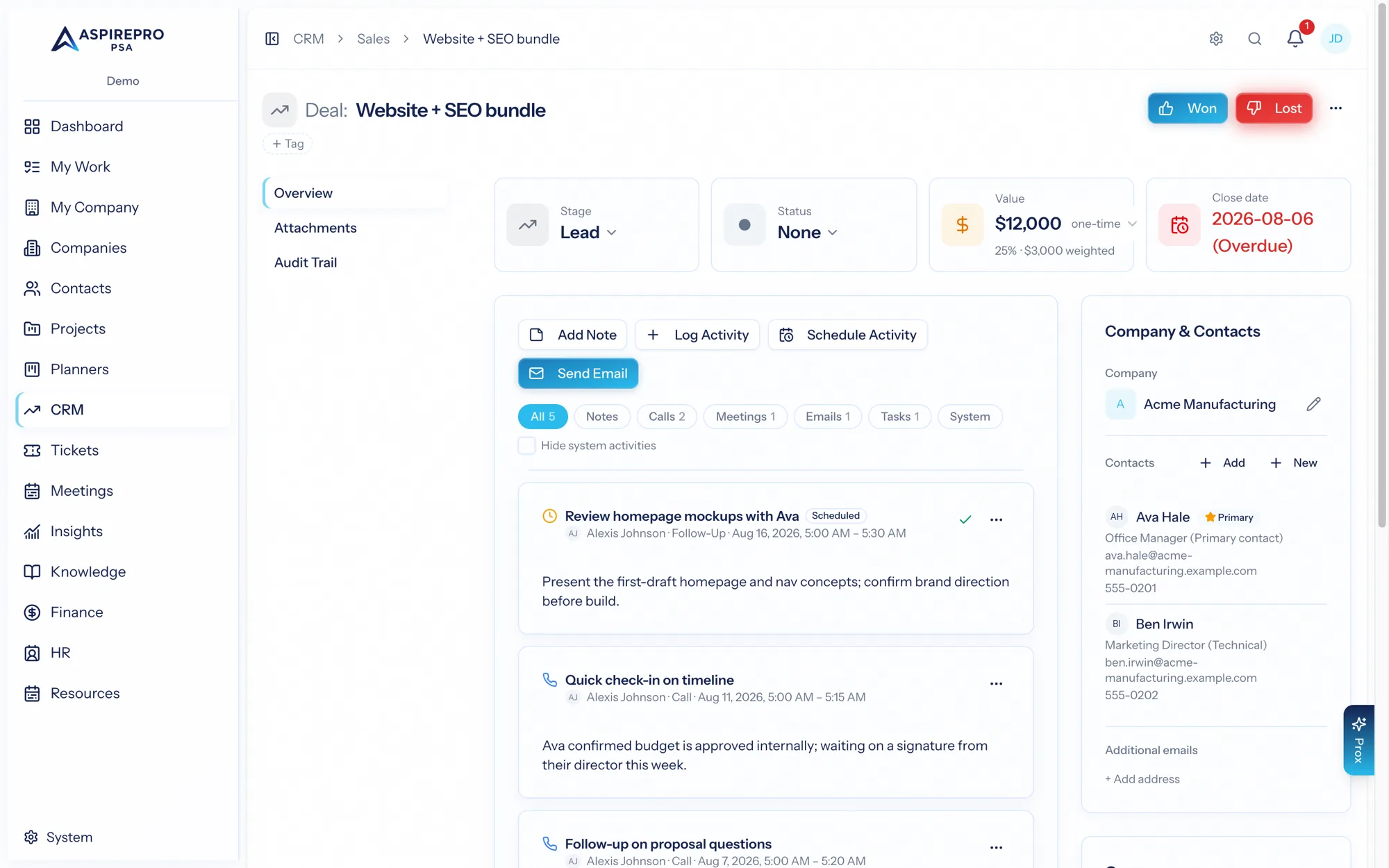
Open a deal to see its record. It has three tabs — Overview, Attachments, and Audit Trail — with the header and stat cards visible throughout.
The header#
The header carries the deal's name (click to rename inline) and its tags (add with + Tag, remove with the ✕). A won deal shows a Won badge with its close date; a lost deal shows its lost reason. On the right are the key actions:
- Won — mark the deal won.
- Lost — mark it lost (you'll choose a reason).
- Send Email — compose an email to the deal's contacts (see Email & templates).
- The overflow menu holds Archive.
Stat cards#
Four click-to-edit cards sit below the header:
- Stage — move the deal through the pipeline (including "Mark as Won/Lost").
- Status — a working sub-state independent of stage (for example Waiting on them); clear it any time. See deal statuses.
- Value — the amount plus a value type (one-time, per month, or per year); the card shows the weighted forecast (value × probability) and an annualized figure where relevant.
- Close date — the expected close, color-coded by urgency.
Overview: the activity feed#
The Overview tab centers on a unified feed — the single timeline of everything happening on the deal. A composer bar at the top lets you:
- Add note — a rich-text note with an optional title.
- Log activity — record a call, meeting, or email that already happened.
- Schedule activity — plan a future call, meeting, or task, then mark it complete later with an outcome and an optional follow-up.
- Send email — open the email composer.
The feed mixes notes, activities, logged and sent emails, and system events (stage, pipeline, owner, value, close-date, and other field changes). Filter it with the chips — All, Notes, Calls, Meetings, Emails, Tasks, System — or hide system activity entirely. Emails in the feed show their direction, addresses, and subject, plus open and click tracking and a Reply action; attachments are noted and saved to the Attachments tab.
By conversation collapses an email thread into one card, standing for its newest message with a count, which you can expand in place. A long-running thread stops burying the calls and meetings around it. Notes, calls and meetings are never grouped.
Anything logged or completed here can carry an outcome — what actually happened. A meeting records Held, No-show or Rescheduled; a call records Connected, Voicemail, Gatekeeper and the rest. Rescheduled marks the meeting cancelled, because it never happened and shouldn't count as a touchpoint. Outcomes are defined per activity type in company settings.
Overview: the sidebar#
Alongside the feed:
- Company & contacts — the deal's company (change or create one) and the people involved. Add existing contacts or create new ones, mark a primary contact, and keep per-contact details. You can also maintain deal-only additional email addresses.
- Owner — who owns the deal; assign or clear.
- Details — the deal's source (with an optional follow-up question), a next step you can edit inline, a BCC-to-log address for capturing email, and created/closed dates.
- Description — free-form, click to edit.
Workflow banners#
If your team has set up workflows, a rule can display a banner at the top of a deal while its conditions match — for example a warning on a high-value deal that's gone quiet. Banners are informational and update automatically.
Attachments#
The Attachments tab holds files attached to the deal, with tags, filtering, and download/preview. Files you attach when composing email also land here.
Audit Trail#
The Audit Trail tab is a complete, immutable log of every change and action on the deal — when, who (or "System"), the category, a friendly description, and the exact field-level before/after values. It's searchable and filterable, so accountability is never in question.