CRM settings are where administrators shape the sales process. They're under CRM → Settings (requires the CRM settings permission) and organized into four areas: Pipelines, Lost reasons, Deal statuses, and Workflows. The Email templates link in the same menu opens System → Email templates, where templates now live for everyone who sends.
Email templates are covered in Email & templates and workflows in Workflows & automations. This page covers the rest.
Pipelines#
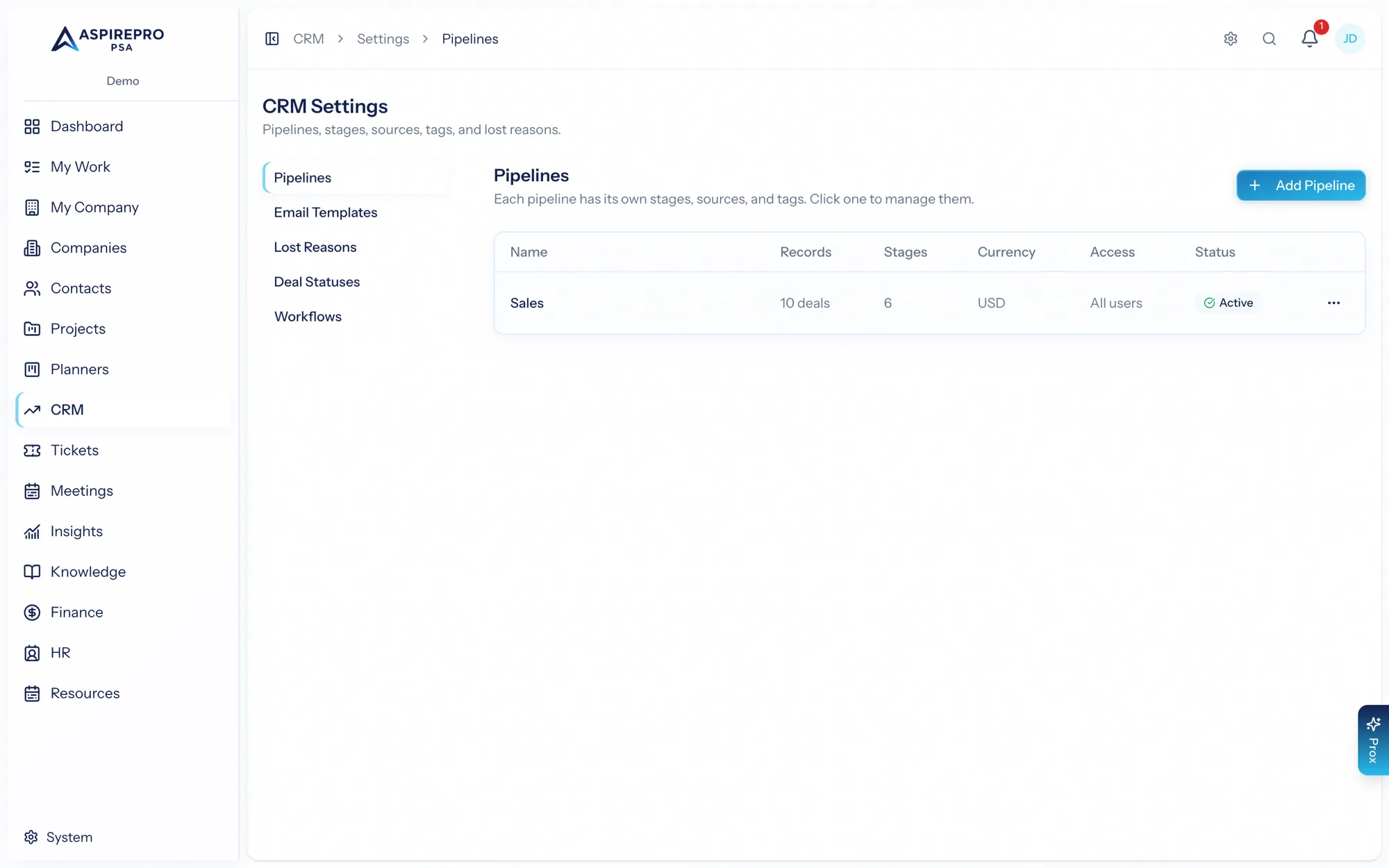
The Pipelines list shows each pipeline with its record count, number of stages, currency, access (all users or restricted), and active status. Add a pipeline with a name, a record noun (the singular/plural label — "Deal/Deals," "Opportunity/Opportunities"), a currency, an all-users-access toggle, and a description. A pipeline can only be deleted when it has no deals.
Import from HubSpot. If HubSpot is connected, Import from HubSpot brings whole pipelines across — one, some, or all of them — each arriving as a new synced pipeline with its stages and deals. Synced pipelines are marked in the list, and their stage editor is read-only while HubSpot is connected, because HubSpot owns the structure. You can never sync HubSpot deals onto a pipeline you built here, so your own pipelines are never restructured by a sync. See the HubSpot integration doc.
Open a pipeline to configure everything about it on one page:
Pipeline configuration#
- Name, description, and the record noun.
- Currency for all values in the pipeline.
- Mark stale after (days) — open deals untouched this long get a stale badge; leave blank to turn it off.
- Access — allow all users, or restrict to a chosen list. Administrators always have access.
Stages#
The ordered list of stages a deal moves through. For each stage set a name, color, and probability %, and mark whether it's the Won or Lost stage (one of each, and they're mutually exclusive). Reorder stages with the arrows, mark one as the default, and deactivate stages you no longer use. Each stage shows how many deals sit in it.
Stage probability feeds the weighted forecast on each deal, so set it to reflect real close likelihood.
Sources#
Where deals come from — referral, inbound, event, and so on. Each source has a name and color, and can carry an optional extra question (a label plus an answer type — free text or a set of reusable options) that appears on any deal with that source. Great for capturing "referred by whom?" or "which campaign?"
Tags#
Flexible, colored labels scoped to the pipeline. Use them for any cross-cutting classification that isn't a stage, source, or status.
Lost reasons#
A managed list of reasons a deal is lost (price, timing, competitor, no decision…). Choosing a lost reason is required when a deal moves to the Lost stage, which keeps your win/loss analysis meaningful. Deactivate reasons you no longer want offered.
Deal statuses#
A deal status is a working sub-state that's independent of the pipeline stage — it answers "what's the hold-up?" rather than "how far along?" Each status has a name, a color, and a category: Waiting on us, Waiting on them, Active, or Stalled / at risk. Statuses appear as a board filter, on the deal header's Status card, and in reporting. A status that's in use can't be deleted — deactivate it instead.
Invest a little time here up front. Clear stages, honest probabilities, a tight set of sources and lost reasons, and a few meaningful statuses make your board, forecasts, and reports genuinely useful — and make workflows easy to build on top.