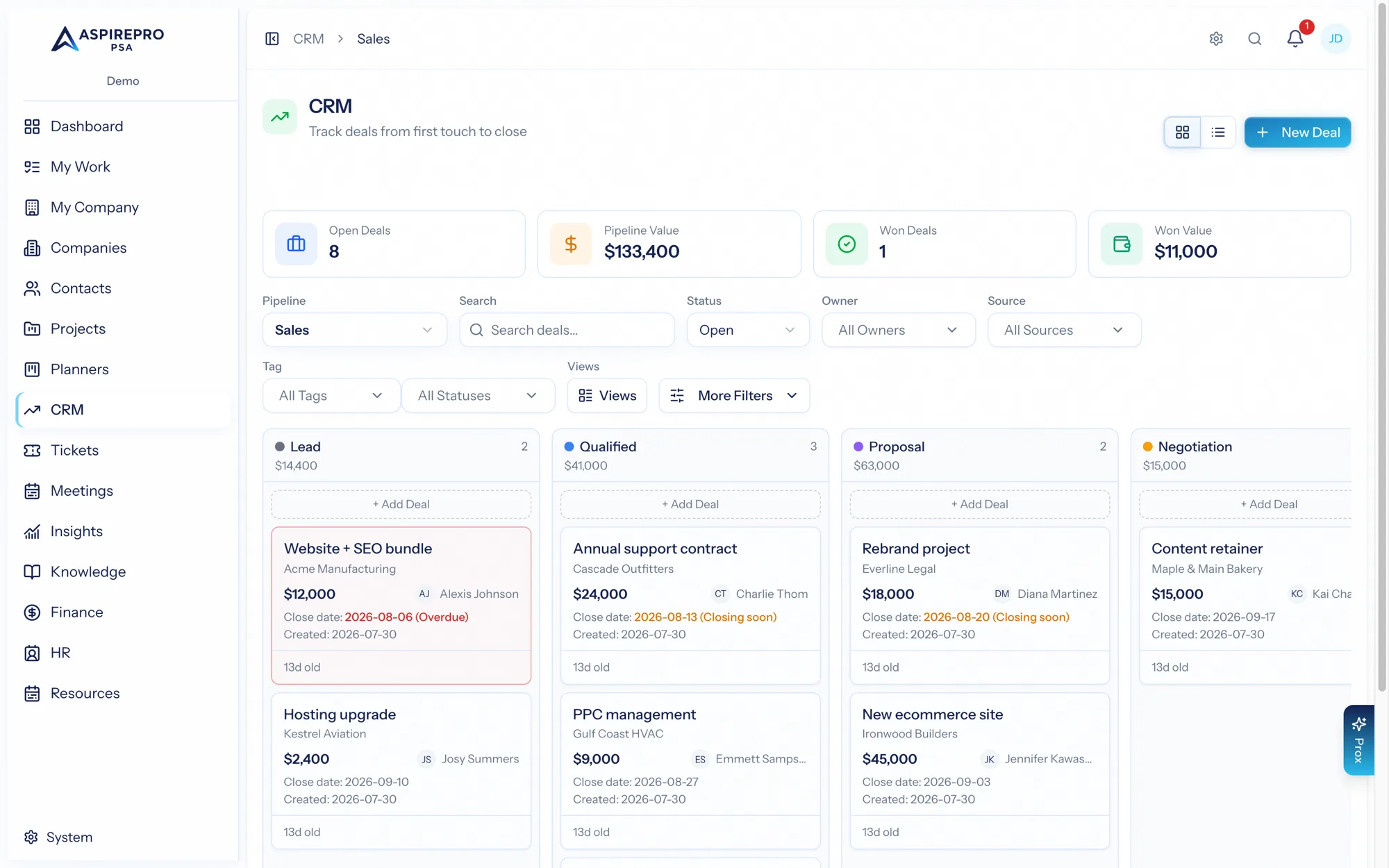
The pipeline board is where you work your deals day to day. It offers two ways to look at the same pipeline, a full set of filters, saved views, and bulk actions.
Board and list views#
Toggle between two views in the top-right:
- Board view — a column per stage, with deal cards you drag between stages. This is the classic Kanban pipeline.
- List view — the same deals as a sortable table (Name, Company, Stage, Value, Owner, Expected close, Age, Last activity). Archived deals always show as a list.
At the top, stat cards summarize the pipeline: open deal count, total pipeline value, won count, and won value — all in the pipeline's currency.
All Deals#
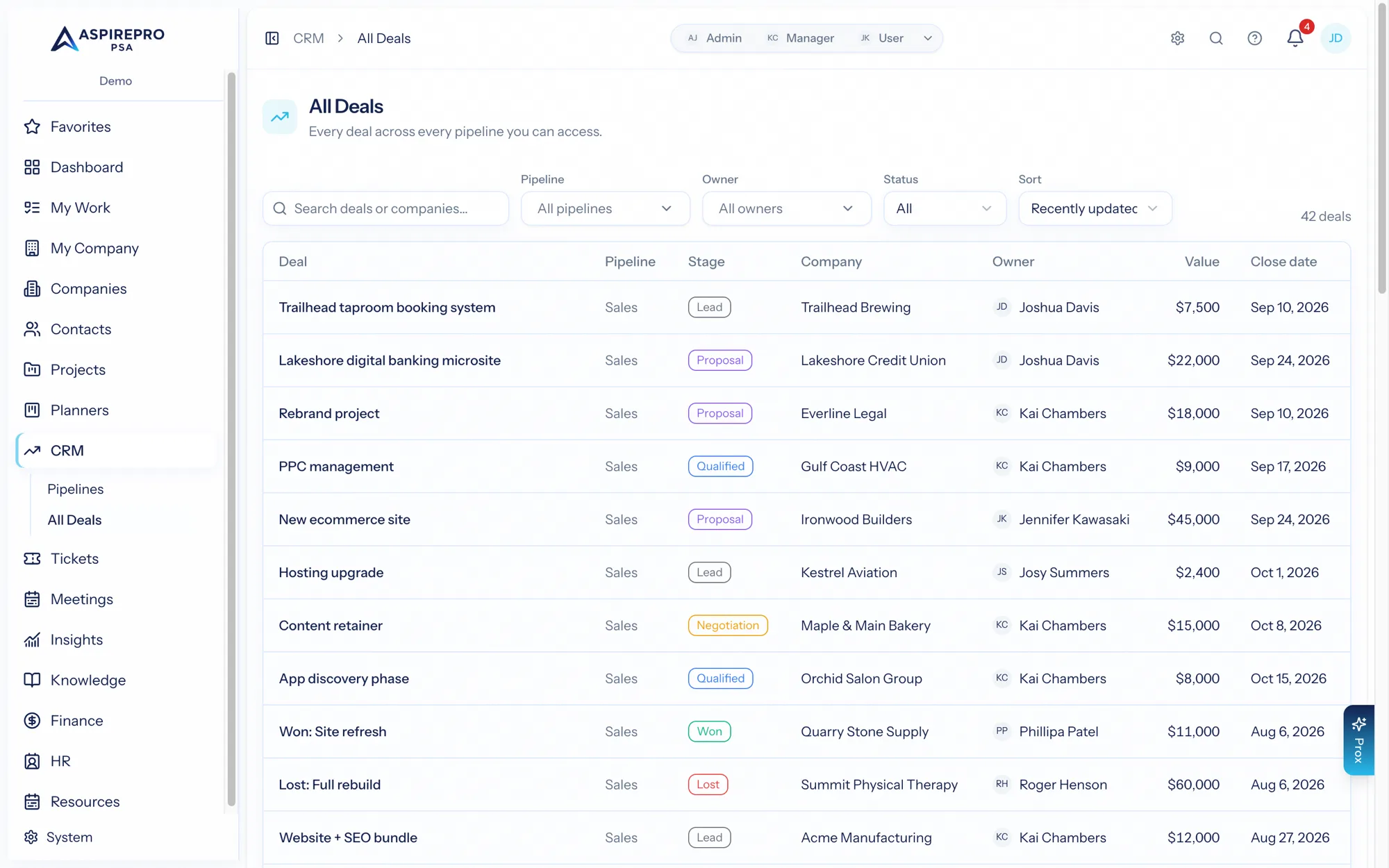
The board shows one pipeline at a time; CRM → All Deals lists every deal across every pipeline you can access as one filterable table — search by deal or company, filter by pipeline, owner, and open/won/lost, sort by value, close date, or recency. It's the cross-pipeline answer to "what's out there right now?", the same way Projects and Planners have All Tasks.
Deal cards#
Each card shows the deal's name, company, value, owner, and close date (color-coded for overdue and closing soon), along with its tags, a stale badge if it's gone untouched too long, its deal-status badge, and a last-activity line. Hover a card for quick actions — preview the deal, send an email, or add a note without opening it.
Moving deals#
Drag a card to another stage to move the deal. Two stages are special:
- Dropping on a Won stage marks the deal won and records today as the close date.
- Dropping on a Lost stage asks you to choose a lost reason, so your win/loss analysis stays meaningful.
Moving deals requires the edit permission.
Filtering#
The filter row lets you narrow the board:
- Search by name.
- Status — Open, Won, Lost, All, or Archived.
- Owner (multi-select, with "Me" pinned first), Source, Tag, and Deal statuses.
- More filters — created-date and last-activity date ranges, a value min/max, and a sort order (last updated, value, or close date). A badge shows how many of these advanced filters are active.
- Clear resets everything.
Saved views#
Dial in a filter combination and save it as a view so you can return to it in one click:
- Save the current filters under a name.
- When a view's filters drift from what's saved, an Update this view option appears (marked with a dot).
- Manage views to rename, edit, delete, or set a default view (the star). Your default view applies automatically when you arrive at that pipeline with no filters set.
Views are per pipeline, so each pipeline keeps its own set.
Bulk actions#
Select deals — via checkboxes in list view or hover-select on the board — to act on several at once:
- Move to stage
- Assign owner
- Archive
Moving deals in bulk to a Won or Lost stage respects the same rules as dragging (close permission, and a lost reason for lost). Archived deals can be restored from the Archived view.
HubSpot-synced pipelines#
A pipeline imported from HubSpot behaves like any other on the board — drag deals, filter, save views, run automations — with one difference: HubSpot owns its stages. The board tells you when you're in one, with the HubSpot mark and a line explaining what its sync mode means right now:
- Two-way — stage moves and edits here push back to HubSpot.
- Inbound only — HubSpot is the source of truth; changes here stay here.
- Paused — nothing flows in either direction for this pipeline.
- Dormant — HubSpot isn't connected at all, so nothing syncs and the stages are editable meanwhile.
The pipeline switcher marks synced pipelines too, so you can tell which is which before switching into one. Everything about how they're set up — importing, modes, and moving off HubSpot entirely — is in the HubSpot integration doc.
Creating a deal#
Use + Add on a stage column (or the new-deal action) to open the quick-create dialog — name, value, and stage — then fill in the rest on the deal record. See The deal record.