When you meet with a client or a prospect, that meeting is part of their story. Meeting auto-log captures it for you: AspirePro can record meetings from your connected calendar onto the contacts, companies and deals they relate to, so nobody has to log them by hand.
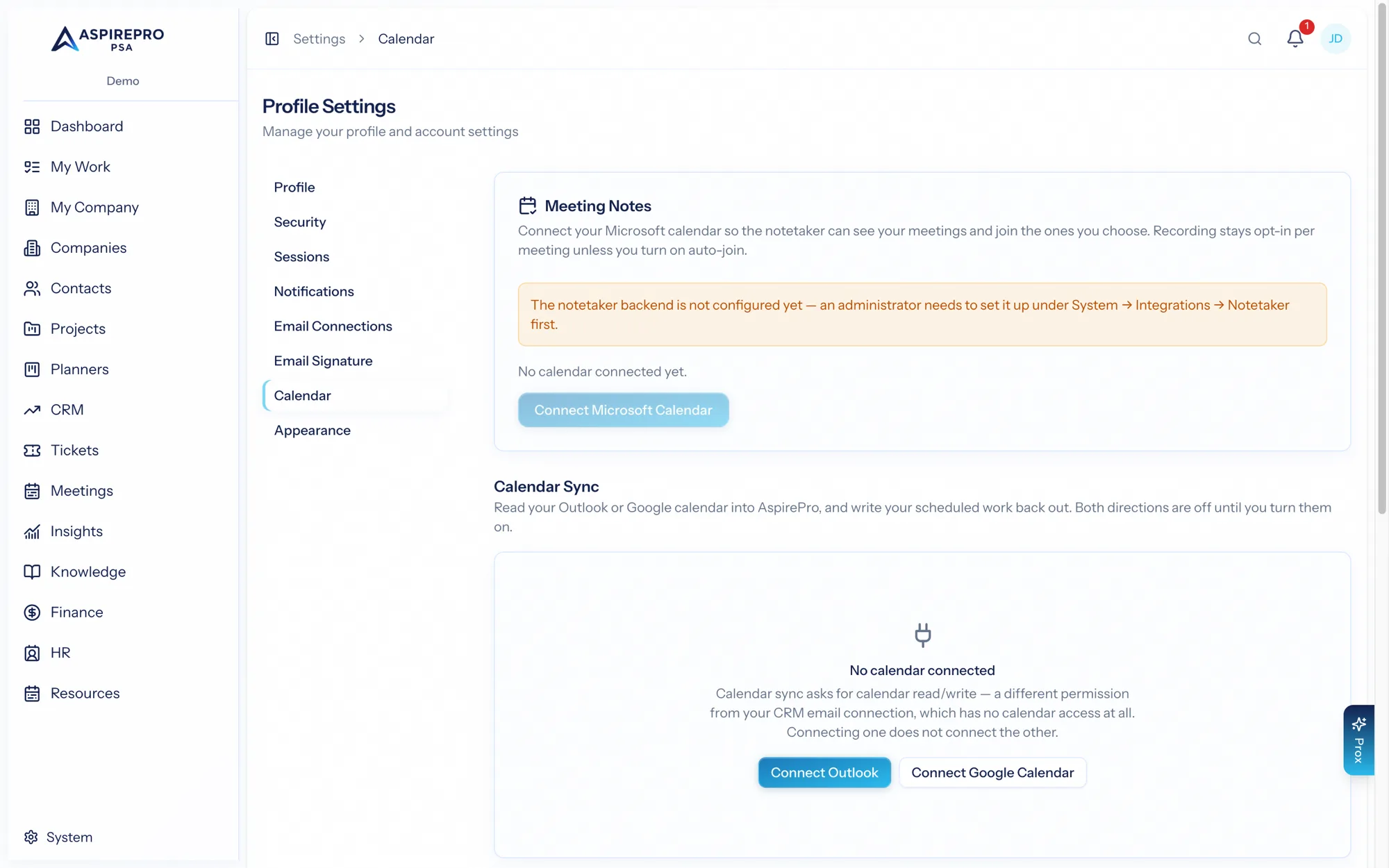
There are two switches, both in Account settings → Calendar, and each person controls their own:
Switch | Default | What it logs |
|---|---|---|
Log meetings onto contacts and companies | Off | Every meeting with an outside contact, onto that contact and their company |
Log meetings onto matching deals | On | One-off meetings with a contact on an open deal, onto the deal |
You'll need a connected calendar first — see Your profile & preferences for connecting Microsoft or Google.
Contacts and companies#
Turn on Log meetings onto contacts and companies and a meeting on your synced calendar is added to a client's activity whenever at least one attendee from outside your organization matches a contact:
- It appears once per company, on the company's Activities and on the contact's, however many of that company's people attend. A contact with no company gets it on their own page.
- Recurring meetings count, like a weekly check-in, and so do all-day events with a client (a conference you run at their office, say). Internal meetings, where everyone is in your organization, are never logged.
- A meeting with a contact on an open deal is shown on the deal instead. The deal's activity also appears on the company page, so the company never sees it twice.
- Turning the switch on also adds your meetings from the last 90 days that are already on your synced calendar.
- Turning it off stops new meetings being logged. Meetings already logged stay, and keep following their calendar event if it's moved or cancelled.
Your calendar is the main copy#
The same meeting can reach AspirePro more than one way: HubSpot may log it through its own calendar connection, and the Notetaker logs meetings it records. When your calendar has the meeting, those copies are merged into it so it appears once:
- A copy is merged when it's for the same company (or the same person), within 15 minutes of the meeting's time, and about one of the meeting's contacts or logged by you.
- A Notetaker recording moves onto the calendar meeting, so the row still opens the recording.
- A copy someone has worked on — logged time, set an outcome or changed who can see it — is left where it is.
- If the calendar meeting is cancelled or removed, its copies come back.
Deals#
When a meeting on your synced calendar includes an external attendee who is a contact on one of your open deals, AspirePro logs a meeting activity onto that deal:
- The meeting is matched to the deal through the contact's email address.
- Each calendar event maps to a single activity, so editing or cancelling the meeting updates the same entry rather than creating duplicates.
- A newly scheduled upcoming meeting can also fire the "meeting scheduled" workflow trigger — handy for automatic prep reminders.
Deals skip meetings that aren't deal activity: all-day events, meetings with no external attendees, meetings whose attendees don't match any contact, and recurring meetings.
Why recurring meetings are left off deals#
A recurring meeting, like a weekly check-in with a client, is your ongoing relationship with them, not work on one deal. Without this rule, a renewal or upsell deal for an existing client would fill up with every past and upcoming occurrence of that check-in. Only one-off meetings are logged onto deals automatically; recurring ones belong on the contact and company. If a recurring meeting really is about the deal, log it on the deal yourself.
Occurrences logged before this rule was added are removed on the next calendar sync, unless someone has already worked on them (added notes, set an outcome, logged time, attached a recording, or changed who can see it).
What every logged meeting has in common#
- It closes itself. There's no "mark complete" step — attending is the completion, so a logged meeting never becomes anyone's overdue item.
- Private stays private. An event you mark Private in Outlook or Google is logged as a private activity — visible only to you. See Calendar sync, meetings & privacy for the full model, including how to change who can see a meeting yourself.
- It isn't sent back out. Logged meetings are never written back to your calendar, and never sent to HubSpot as tasks.
- Time is yours to add. A logged meeting shows how long it ran, but no time is recorded for anyone. To count a meeting on your timesheet, open the row's menu and choose Add time entry.
Auto-logged meetings show a Calendar sync source badge in the Activities list, so you always know which entries came from a calendar.