Workflows let your pipeline run itself. Each workflow is a rule that reads: WHEN a trigger fires on a deal, IF the conditions match, THEN run these actions. Use them to keep deals moving, nudge owners, tag and route automatically, and surface risks — without anyone remembering to.
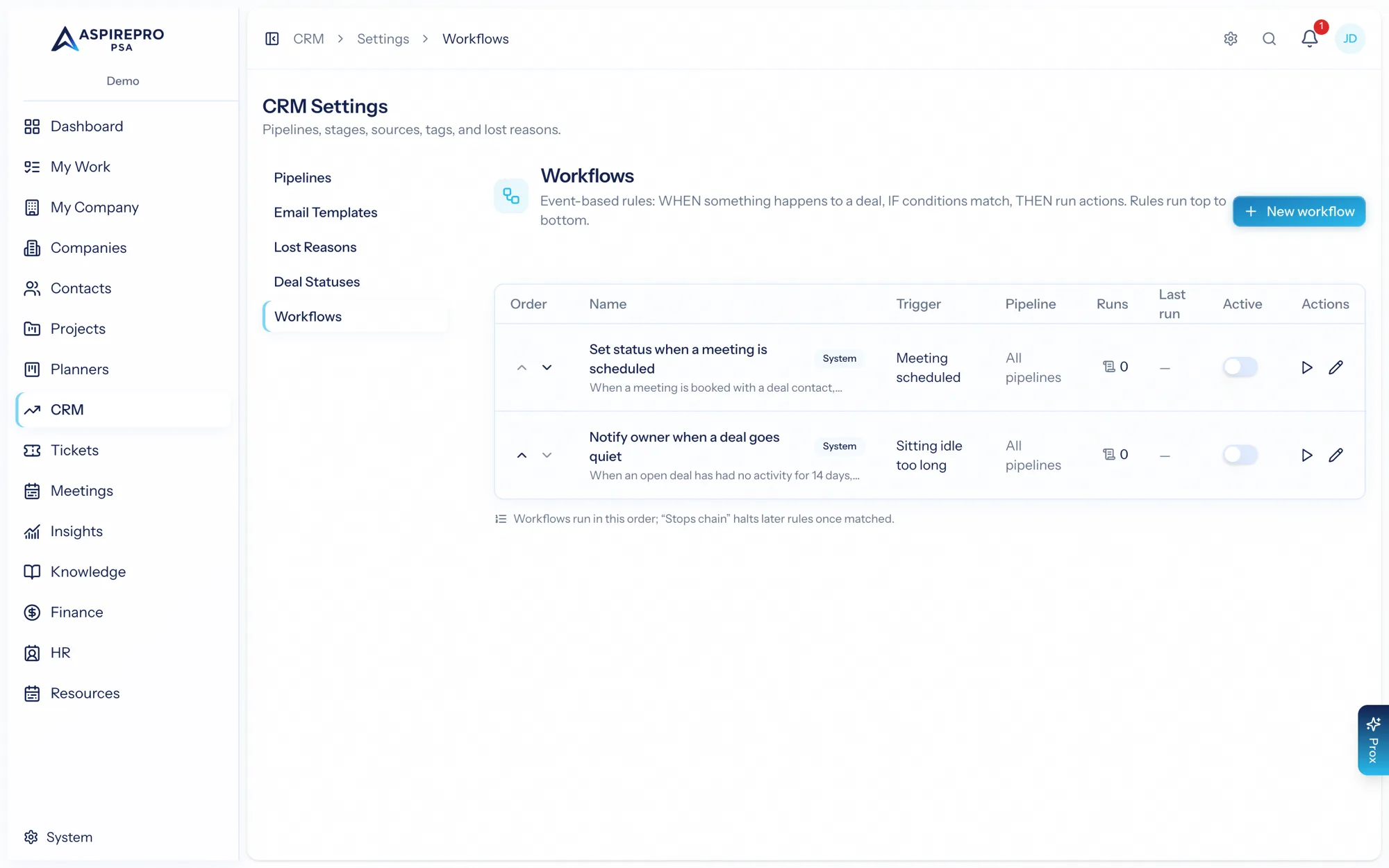
Workflows are configured under CRM → Settings → Workflows. Viewing them needs the workflow-view permission; editing needs the workflow-manage permission.
How rules run#
- Rules run top to bottom in the order listed. Reorder them with the arrows.
- A rule can be set to stop processing — when it matches, no later rules run for that deal. This lets you build precedence (a specific rule before a catch-all).
- Rules are either system rules (built in, always present) or ones your team creates. Each has an Active toggle so you can pause a rule without deleting it.
Triggers#
A trigger is the event that starts a rule. The available triggers are:
- Deal created
- Stage changed
- Status changed
- Deal won
- Deal lost
- Owner changed
- Activity logged
- Meeting scheduled — from a synced calendar (see Meeting auto-log)
- Email sent
- Sitting idle too long — a deal untouched for N days (checked periodically)
Conditions#
Conditions decide whether the actions run. You build them as groups that match ALL or ANY of their contents, nested up to three levels deep for precise logic. Conditions can test fields across the deal, its company, and its contacts — value, probability, stage, status, source, owner, tags, next step, age, days since last activity, won/lost, dates, and more. Operators are type-aware: equals, contains, is one of, greater/less than, is empty, changed / changed from / changed to, date is in the past/future, and so on.
Leave conditions empty and the actions run whenever the trigger fires.
Actions#
When a rule matches, it runs its actions in order:
- Set status
- Move to stage
- Add tag
- Display a banner on the deal — info, success, warning, or critical text, shown while the conditions match (great for "high-value deal gone quiet").
- Assign owner
- Create a follow-up activity — a task or call with a subject, a due offset (in days), assigned to the owner or a specific person.
- Send a notification — to the owner, a specific user, or a role, with an optional message.
Testing before you commit#
Automations are powerful, so test them safely first:
- Test (dry run) evaluates the rule against your open deals without changing anything and reports how many would match and how many actions would run, with a sample. Use it to confirm a rule does what you expect.
- Run now applies the saved rule to all matching open deals immediately. This does make changes, so it asks you to confirm.
The runs log#
Every evaluation is recorded. Open a workflow's runs to see each run — when it happened, which deal, the trigger, whether it matched, the outcome (success, error, or skipped), how many actions executed, and how long it took. Filter by status or matched, and open any run for details, including which conditions matched and any error. The log is your window into what automations are actually doing.
Start small: one or two rules with Test run first, watch the runs log, then expand. Because rules run top-to-bottom with stop-processing, a tidy, ordered list is easier to reason about than many overlapping rules.