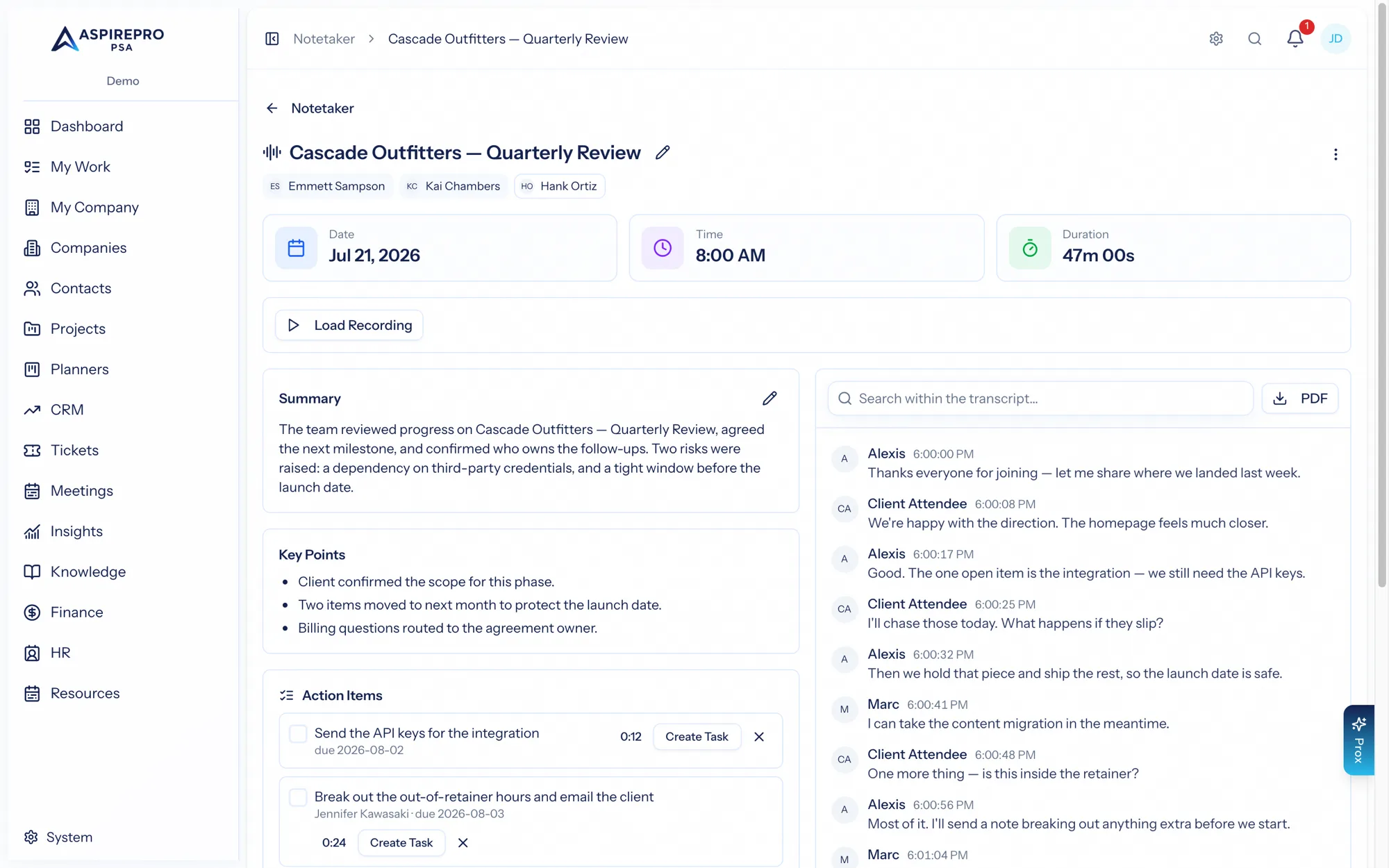
Open a recorded meeting to find everything the notetaker captured: an AI-generated summary, a full transcript, the recording, and action items ready to become work.
AI notes#
At the top are the AI notes — a summary plus key points, decisions, and open questions, generated automatically from the transcript. If a meeting's owner wants a fresh pass (for example after a transcript finishes processing), they can regenerate the notes. The title and summary are editable by the owner.
The transcript#
The transcript is speaker-attributed and timestamped, with organization users shown by avatar. Search within it to jump to a moment, and click a line to play the recording from that point. You can also export the transcript as a PDF.
The recording#
The recording is available on demand — load it to play back the meeting. Recordings aren't stored in the page; they're fetched with a short-lived link when you ask for them, keeping this sensitive data tightly held.
Linking to a client#
When a meeting includes an external participant whose email matches a contact, AspirePro links the meeting to that contact and their company automatically — and you can set or change the company (and link an open deal) from the Client card on the meeting page.
A linked meeting logs one meeting activity on the company's timeline, and once it has taken place it can satisfy a lifecycle goal and counts as contact for client health. The activity carries only the facts — title, time, attendees. It never includes your AI notes or transcript: colleagues can see that a client meeting happened without ever seeing what was said, which stays behind the meeting's own owner-and-shares privacy. A per-user toggle on the Notetaker page ("Log client meetings to the company timeline") turns the auto-logging off.
Action items → work#
The most useful part: every action item the notetaker extracts can become real work. For each item you can set an assignee and due date, or dismiss it — and then Send to… turns it into a record in the module where that work actually lives. Only the meeting's owner can send; sharing a meeting never grants that.
Sending an item#
- Click Send to… on an item (or tick several items and use the bulk Send to… button).
- Where — pick a destination card. You only see destinations you could use yourself: the module has to be on and you need its create/edit permission. - My Planner — a task on your own personal planner (no record to pick). - Planner / Project — a task in a shared planner or a client project you can edit. - Ticket — a new ticket on a board you have access to. - Company activity / Contact activity / Deal activity — a scheduled to-do on that record's timeline or deal feed.
- Which — choose the record. The list is grouped into Suggested for this meeting (the linked company, its contacts and open deals, an assignee whose email matches a contact), Recent (where you last sent things), and All results as you type.
- Details — the record's own fields, prefilled from the item: name or subject, bucket, status, priority, assignee, due date, and a description that links back to the meeting and the transcript moment. In bulk, each record is named after its own item and keeps its own due date — you set the shared fields (bucket, assignee) once.
The record is created exactly as if you had made it natively in that module — same validation, same defaults, same notifications to the assignee, and its audit trail says it came from a meeting.
After sending#
- The item shows a sent chip — "Task in Roadmap ↗", "Ticket #482 ↗", "Activity ↗" — that opens the record. You only see the link if you can access that record yourself.
- Send elsewhere too (from the chip's menu) sends the same item to a second destination, for example a task for you and a ticket for the client. The item keeps every link.
- Undo deletes the record and reopens the item — offered only while the record is still untouched (no comments, replies, time entries, or edits). Once someone has worked on it, Detach removes the link but keeps the record.
- On the other side, the task panel, ticket header, and activity dialog show a From meeting chip that links back to the meeting — or simply "From a recorded meeting" for colleagues who can't open the meeting itself.
From Prox#
Ask Prox to do it for you: "send the SOW action item from today's Acme call to the Onboarding project". Prox uses the notetaker_send_action_item tool, which goes through the same rules as the dialog — owner only, same destinations, same field validation — and shows you a confirmation describing what it will create before anything is saved. The same tool is available to MCP clients.
The flow from conversation to action is the point: the notetaker listens, extracts what needs doing, and a couple of clicks turn each item into a tracked task, ticket, or activity assigned to the right person — closing the gap between "we agreed to do this" and "it's on the board."