The Scheduler gives you public booking pages: share a link, and people pick a time from your live availability across your connected calendars. The meeting is booked, both parties are invited with a calendar event, and — when the invitee matches a client — it's logged against the right deal automatically. No more back-and-forth to find a time.
Scheduler is a toggleable module; an administrator turns it on under System → Features.
Bookings#
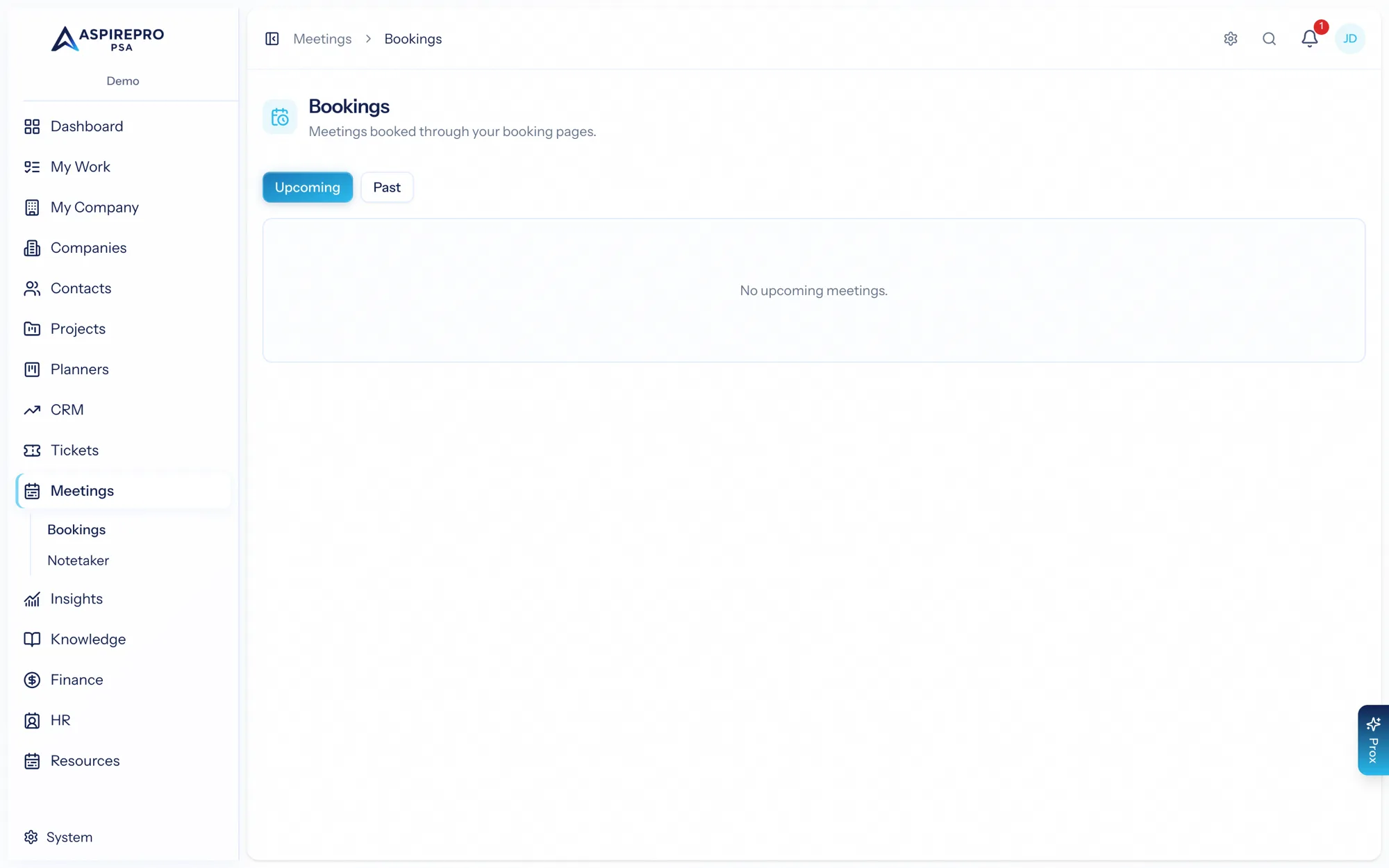
Meetings → Bookings is your list of scheduled meetings — upcoming and past. Each shows the meeting name, the invitee, the time, duration, status, and location, and links to a related CRM deal when there's a match. You can cancel a booking (with an optional reason). A "needs attention" badge flags a confirmed video meeting that didn't get a join link, so nothing quietly falls through.
When something doesn't go out#
A booking has side effects: the calendar event, the invitee's confirmation, your own confirmation, the in-app notification, the CRM link. Each one is tracked separately on the booking, so a mail server having a bad morning can't quietly swallow a confirmation while everything else succeeds.
- A booking still working through its steps shows Sending…; one that ran out of automatic attempts shows Delivery failed.
- Show delivery expands the per-step list — Calendar event, Invitee confirmation email, Your confirmation email, In-app notification, CRM link — each marked Done, Pending, Not needed, or Failed with the reason.
- Failed steps retry themselves several times on their own, and a background sweep picks up anything whose job never ran at all. Past that, Retry delivery runs the remaining steps again; only the steps that haven't finished are re-run, so nobody gets a second confirmation because the calendar step failed.
- Resend sends the invitee their confirmation again on request — for the person who deleted it, not for a failure. It's offered on upcoming, confirmed bookings only.
- Both actions belong to the booking's host — the person whose calendar it is.
- Confirmation emails wait for the calendar step, so the invite and the email arrive together rather than an email that promises an event that isn't there yet.
How it fits together#
- You define booking pages (event types) — the kinds of meetings people can book, each with its own length, location, and questions.
- You set your availability and your booking URL.
- People book through your public pages, and the meeting appears in your Bookings and on your calendar.
What's in this section#
- Booking pages — creating and configuring event types.
- Availability & settings — your URL, photo, schedules, and email options.
- The booking experience — what invitees see, and rescheduling/cancelling.
- Embeds — putting your scheduler on a website.
Because availability is read live from your connected calendars, people can only ever book times you're genuinely free — no double-bookings, no manual blocking.