A booking page (event type) is a kind of meeting people can book with you — a "30-minute intro call," a "60-minute strategy session," a "15-minute demo." You can have as many as you need, each configured independently. Create and edit them from your scheduler settings.
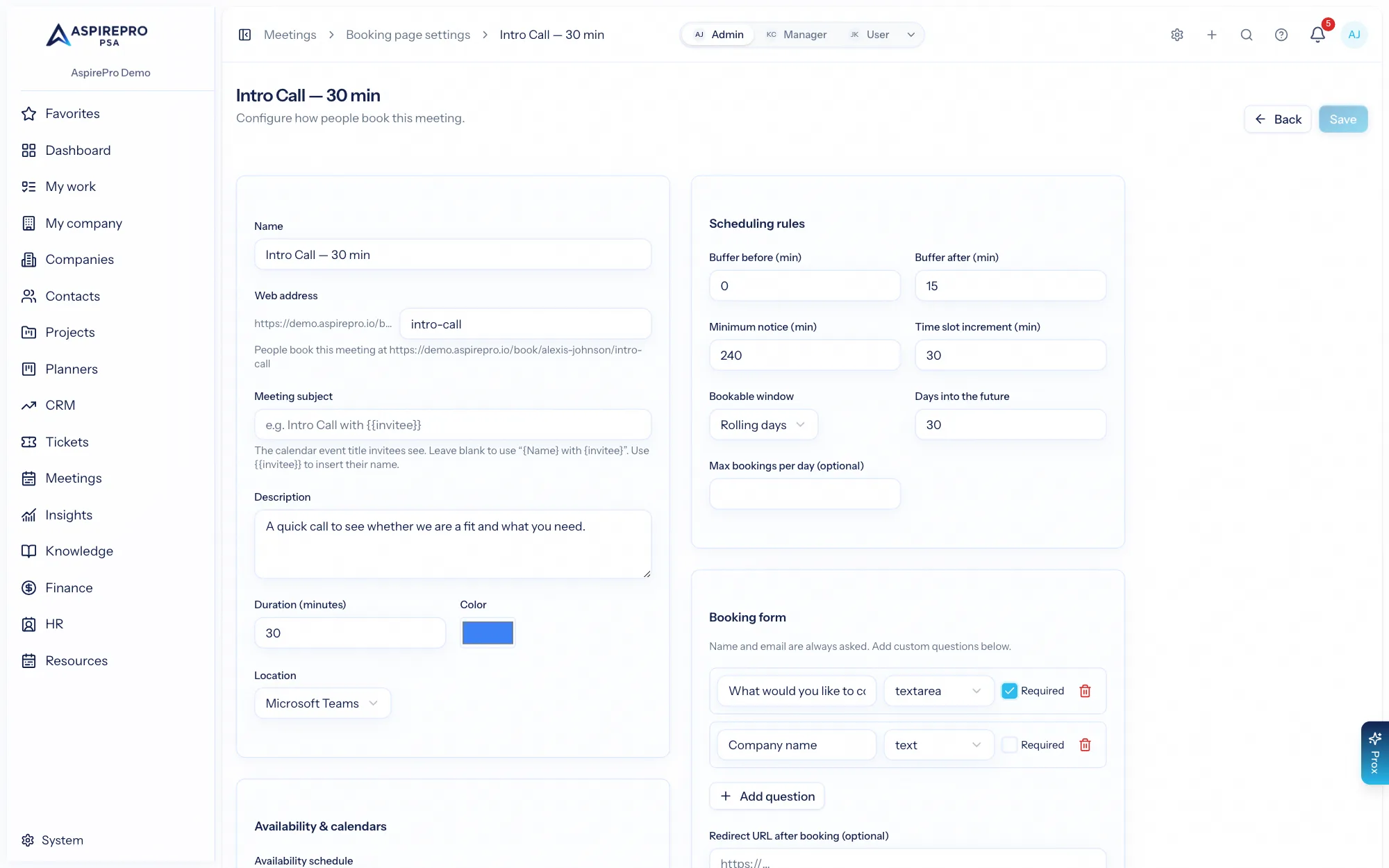
The essentials#
Each booking page has a name, a subject (which can include the invitee's name), a description, a duration, and a color. Toggles control whether it's active and whether it's listed on your public page.
Web address#
Every booking page has its own web address — the last part of the link people use to book it, shown right under the name as you edit. A new page takes its address from its name (an "Intro Call" becomes …/book/you/intro-call) until you type your own; lowercase letters, numbers and hyphens are allowed. Renaming a page later never changes its address, so links you've already shared keep working.
You can change the address on purpose at any time. When you do, the old link stops working — anyone holding it needs the new one, and an embed that names the page by its address needs updating too. Two of your pages can't share an address, and an address that belonged to a page you deleted stays retired.
Duplicating a page#
Built a page with the right questions, buffers and reminders and want a 60-minute version? Use Duplicate (the copy icon on the page's card in Settings). The copy carries every setting, intake question and conflict calendar, is named "… (copy)", gets a fresh web address, and starts turned off so nobody can book it before you've adjusted it. Existing bookings stay with the original.
Location#
Choose how the meeting happens:
- In person (with a location detail), phone (you call them, or they call you), a Google Meet or Microsoft Teams link (created automatically), or a custom URL.
Availability and conflict checking#
- Pick which availability schedule governs when this event can be booked (see Availability & settings).
- Choose which calendars to check for conflicts, so a time you're busy on any of them is never offered.
- Choose which calendar the booked event is written to.
Timing controls#
Fine-tune when and how often people can book:
- Buffers before and after the meeting.
- A minimum notice so no one books you in five minutes.
- The slot increment (how times are spaced).
- A date window — a rolling range, fixed dates, or indefinite.
- A daily cap on how many of this meeting can be booked in a day.
Intake questions#
Add custom questions invitees answer when booking — free text, a longer response, a dropdown, or a phone number, each optionally required. Use them to gather what you need before the meeting (what they want to discuss, their company, a phone number).
After booking#
Set a confirmation message or a redirect URL for where people land after they book, so the experience flows into your next step.
A well-configured booking page does your scheduling and your intake: the right length and buffers protect your calendar, and the questions mean you walk into every meeting already knowing what it's about.