Your scheduler settings — under Meetings → Settings — control your public identity, when you're bookable, and the emails that go out around a booking.
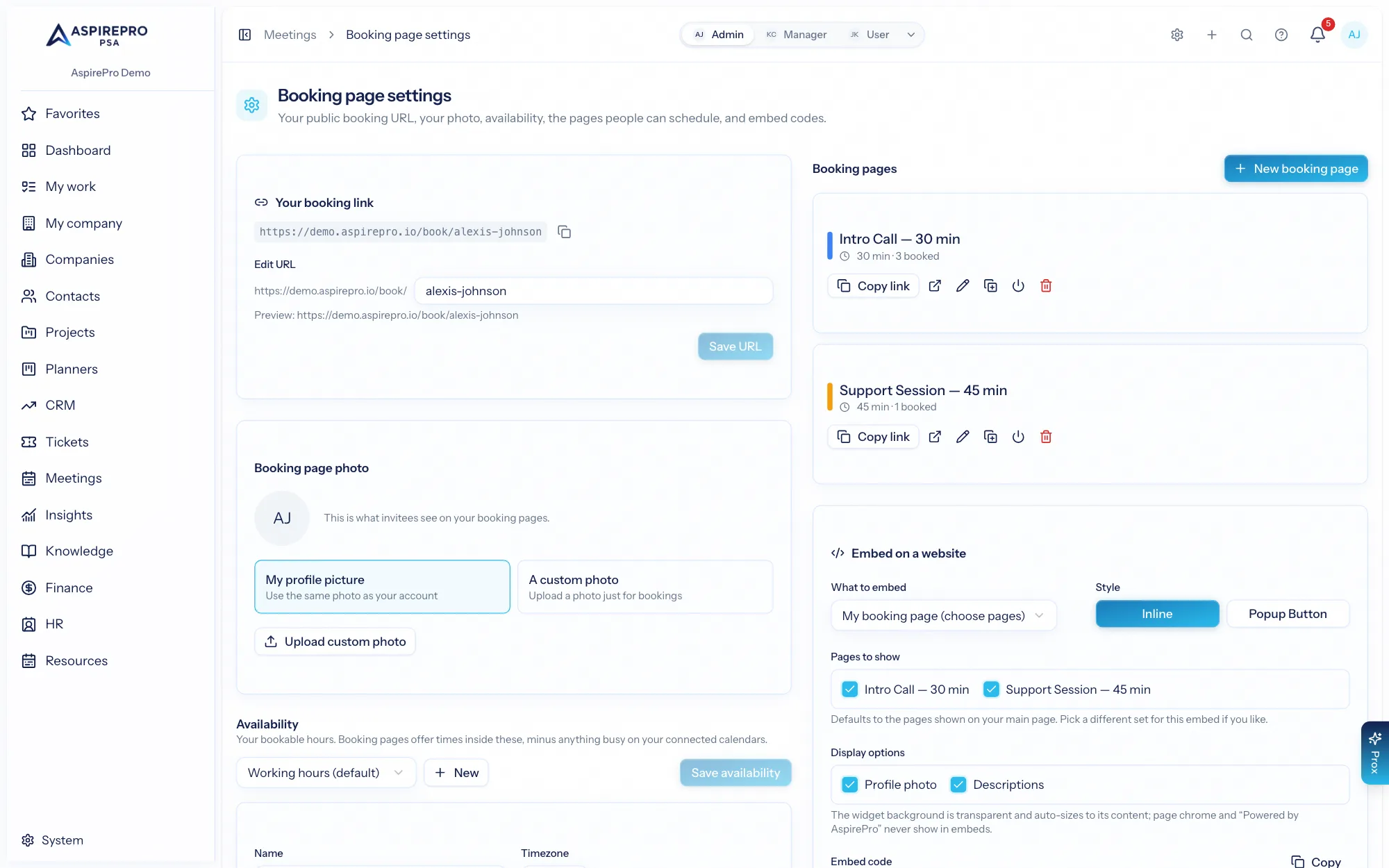
Your booking URL#
Set your booking URL slug — the personalized address people use to book with you (like book/your-name). It's unique in your organization. Changing it breaks any old links you've shared, so pick one you'll keep.
Your booking photo#
Add a photo shown on your public booking page — use your profile picture or upload a custom one — so invitees see a friendly, recognizable page.
Availability schedules#
Availability schedules define when you're bookable. Each schedule has weekly rules (your working hours by day), date-specific overrides (holidays, one-off changes), and a timezone. You can keep several schedules and point different booking pages at different ones — for example a "mornings only" schedule for demos. A sensible default (weekdays, 9–5) is created for you to start from.
Your true free/busy comes from your connected calendars on top of the schedule, so people only ever see times you're genuinely open.
Email options#
Each booking page controls its own emails, so you decide the experience per meeting type:
- Confirmation — sent when someone books.
- Reminders — one or more, at offsets you choose (for example a day before and an hour before).
- Cancellation — sent if a meeting is cancelled, with your message.
- Follow-up — sent a set time after the meeting, with your message.
Both parties get a calendar invite with the meeting details automatically.
Set your URL and a default schedule once, then tune reminders and follow-ups per booking page. The result is a booking experience that feels personal and keeps both sides informed without any manual email.