When a deal is won in HubSpot, AspirePro can start the project for it: from one template you pick, or from the services the deal sold. This page puts the setup in order. Each step links to the page with the details.
You need three things: the HubSpot pipeline synced into AspirePro, a Deal won rule that creates the project, and (only if you build projects from what was sold) catalog items that start a project template.
1. Bring the HubSpot pipeline in#
- Go to Sales → Settings → Pipelines and click Import from HubSpot.
- Pick the pipeline, then choose which deals come in: All deals, or Won deals only.
- Check the pipeline's sync direction is Both ways or From HubSpot only. A Paused pipeline brings nothing in, so no deal is won here.
- On System → Integrations → HubSpot, open the Pipelines & deals tab and set If a deal's company isn't in AspirePro to Create the company. A project needs a client to bill, so a deal without a company can't start one.
See HubSpot: Pipelines & deals for everything a synced pipeline does.
2. Create the rule#
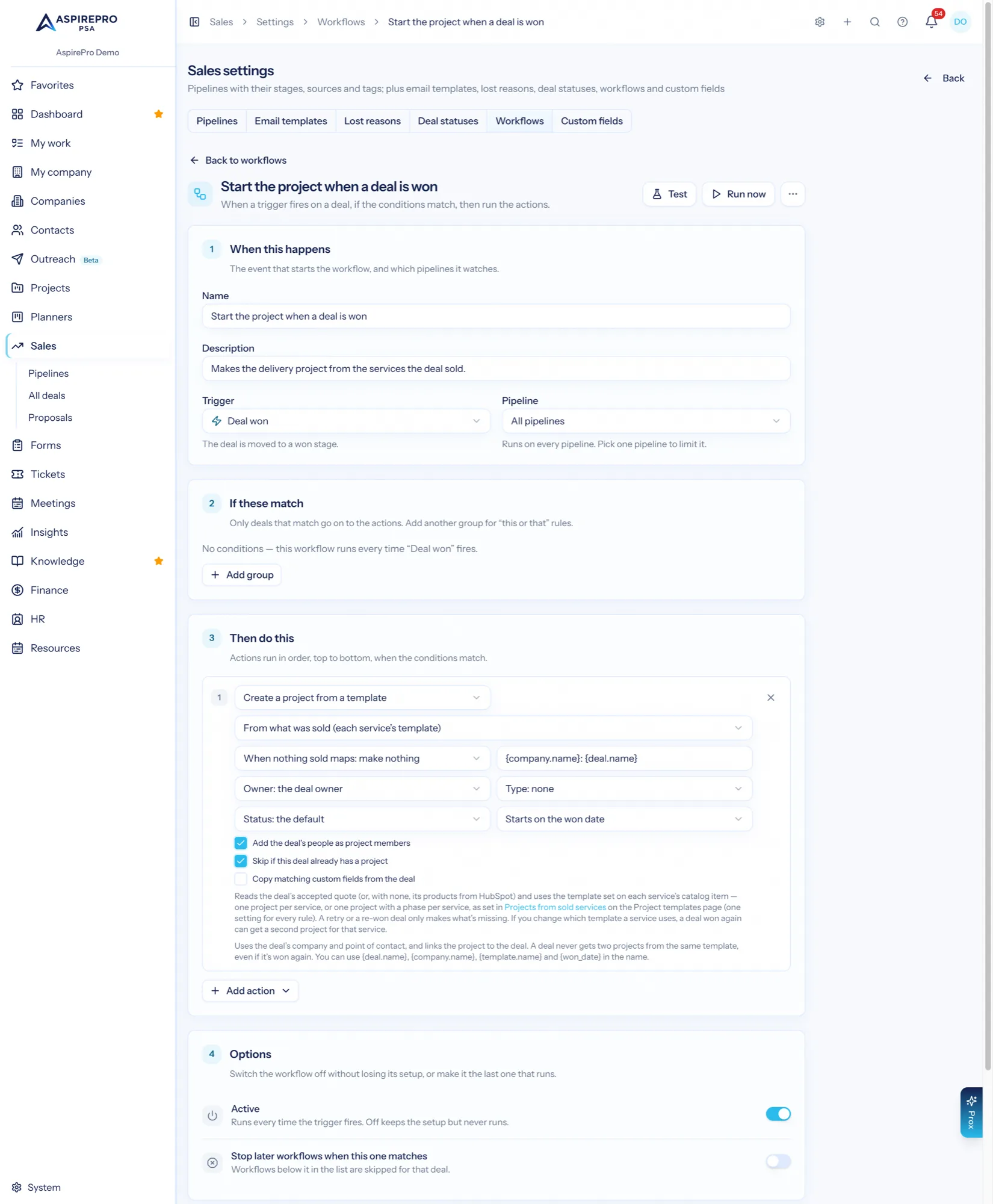
Go to Sales → Settings → Workflows and click New workflow.
- Trigger: Deal won. Choose the pipeline it applies to, or all pipelines.
- Conditions (optional): for example, only deals in a certain pipeline, or worth more than a set value. Leave them empty to make a project for every won deal.
- Action: Create a project from a template. Under Which template, choose:
- From one template: every deal gets a project from the template you pick.
- From what was sold (each service's template): one project per service the deal sold, each from the template on that service's catalog item. The template you pick here is used only when nothing sold has one. Step 3 sets this up.
- Owner: the deal owner by default, or a specific person.
- Members: tick Add the deal's people as project members to add the people assigned to the deal.
- Project name: use Insert field or type
{deal.name},{company.name},{template.name}and{won_date}, for example{company.name}: {template.name}.
Make sure the rule is Active, then save. Use Test to see which open deals it would match without changing anything.
See Workflows & automations for every option on the step.
3. Only for "From what was sold"#
Skip this step if the rule uses one template.
- Give each service a template. On System → Products & services, open the catalog item and set Starts a project to its project template.
- Link HubSpot products to catalog items. On System → Integrations → HubSpot, Pipelines & deals tab, Products on deals lists the HubSpot products on your deals that aren't linked yet. Click Link to catalog item… for each. Products with the same SKU as a catalog item are linked on their own.
- Choose one project or several. On Projects → Templates, Projects from sold services chooses One project per service or One project, a phase per service. This is one setting for every rule.
- Let AspirePro read line items. HubSpot needs permission to read a deal's products (line items). If the HubSpot page says products aren't coming in, click Reconnect once and approve the request.
See Project templates: Projects from sold services.
Check it works#
- The checklist. On System → Integrations → HubSpot, Pipelines & deals tab, the Won deals → projects checklist shows what still stands between a won deal and a project: a pipeline bringing deals in, products linked to catalog items with a template, an active Deal won rule with the project step, and permission to read line items. Each line links to the screen that fixes it.
- The deal's Projects card. When a deal was won and no project was made from what it sold, its Projects card says "No project was made from this sale." and gives the reason, for example no rule for that pipeline, no company, or products that aren't linked. Once that's fixed, Create the projects makes them.
Good to know#
- Only new wins start projects. The rule runs for deals won after it exists, from live HubSpot changes. Deals brought in by an import, or already won when the pipeline was linked, are history, so they don't start a project. To make one for an older deal, use Create the projects on the deal's Projects card.
- No duplicates. A deal never gets two projects from the same template, even if it's won again or the rule runs twice. By default no project is made when the deal already has one.
- Some services, not all. When only some of the services sold have a template, the Projects card names the ones still missing. After you add the template, Create the missing one makes just that project.