Knowledge settings live under System → Knowledge (they need the knowledge-settings permission). Here you manage the two things that structure the knowledge base: collections and tags.
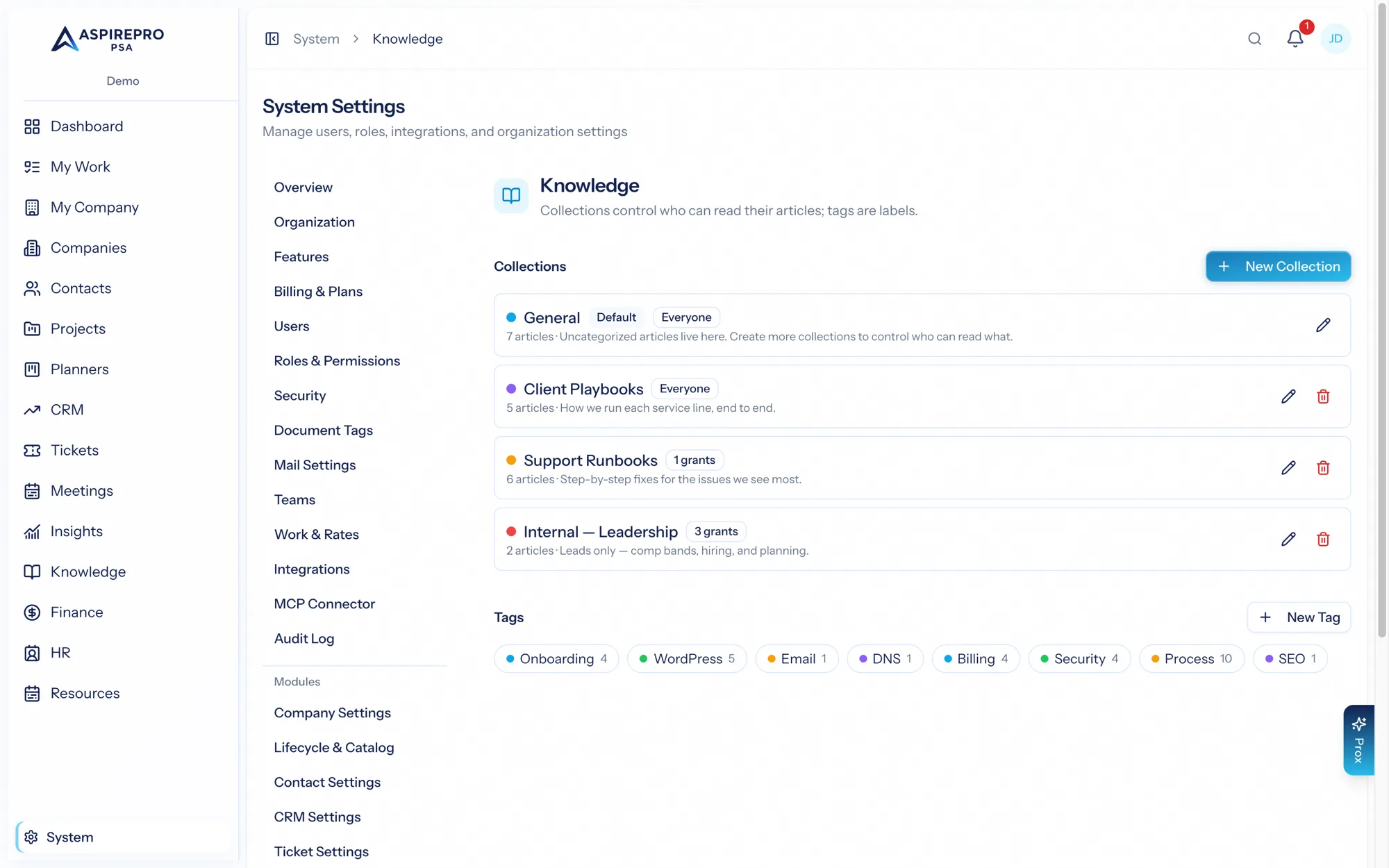
Collections#
Because collections control access, managing them is the heart of knowledge administration. For each collection you set:
- A name, color, description, and sort order.
- Whether it's active.
- Access — an "everyone in the organization can read" switch; turn it off and grant specific people and teams instead.
Each collection shows how many articles it holds and a badge summarizing its access. Two guardrails keep things safe: the default collection can't be deleted, and a collection that still holds articles is deactivated rather than deleted, so you never orphan content.
Tags#
Tags are simple labels for browsing and filtering — a name and a color. Like collections, a tag that's in use is deactivated rather than deleted, so filters and links don't break. Remember that tags carry no access; they're purely organizational.
Getting the structure right#
A little planning here pays off across the whole knowledge base:
- Design collections around audiences — who should read what — since that's what they gate.
- Use tags for topics that cut across collections.
- Keep a small, clear set of both, so people can find things and editors know where to file them.
Collections are your access model and your top-level organization, so give them the most thought. Tags are the flexible, low-stakes layer on top — add them freely.